

What you can do
| Capability | Description |
|---|---|
| Edit built-in pages | Modify the layout and content of every standard portal page (Home, Dashboard, Blog, Events, etc.) |
| Create custom pages | Build entirely new pages from scratch or from pre-made templates |
| Drag-and-drop components | Add headings, cards, alerts, grids, images, iframes, scripts and many more — all with configurable properties |
| Responsive design | Preview your designs at Desktop (1400 px), Tablet (768 px) and Mobile (375 px) breakpoints |
| Audience targeting | Show or hide sections for everyone, logged-in users, members only or contacts only using the CustomerType component |
| Live preview | Open a full preview of your changes in a new browser tab before saving |
| AI page generation | Describe a page in natural language and let the AI assistant generate a starting layout for you |
| Custom navigation | Organise built-in and custom pages into fixed categories and custom groups in the portal navigation |
Editor anatomy
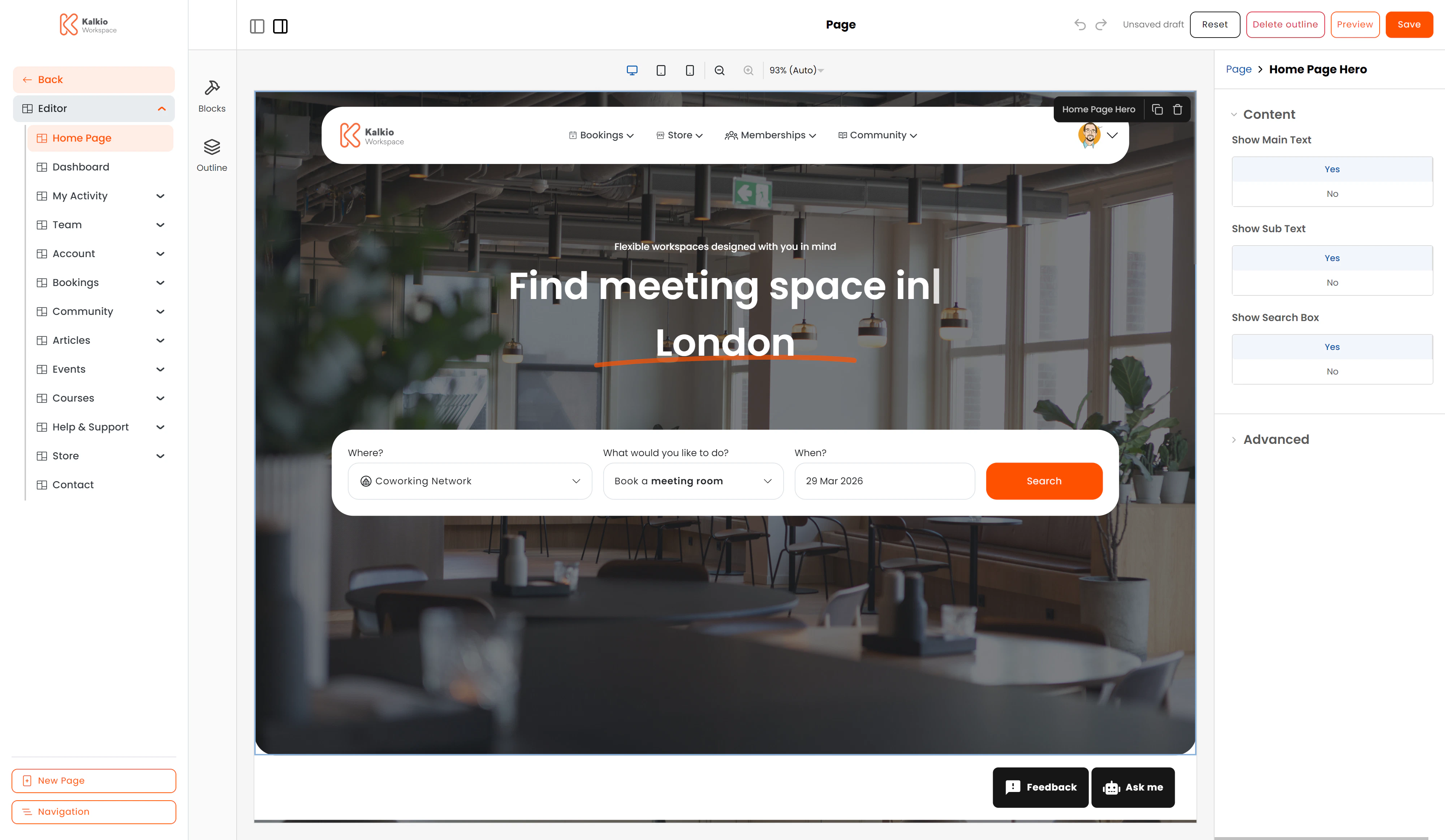
The editor interface is divided into four main areas:- Left sidebar — browse and open built-in pages, custom pages, create new pages from templates, and open the Navigation editor.
- Component drawer & Outline — built-in Puck panels for inserting new components (drag from the drawer) and inspecting the component tree (Outline).
- Canvas — the live preview area where you drag, drop and rearrange components. Supports Desktop, Tablet and Mobile viewports.
- Properties bar — when you select a component on the canvas, its configurable properties appear on the right-hand side, organised in collapsible groups.
- Toolbar — the top bar with Save, Reset, Delete, Preview buttons and an unsaved-draft indicator.
How to access the editor
Navigate to your portal URL and append/admin/editor — for example https://yourspace.nexudus.com/admin/editor. You must be signed in as a space operator.
Next steps
Left Menu & Pages
Browse built-in pages, custom pages, templates and the navigation editor.
Navigation Editor
Configure fixed categories and custom groups to organise your portal menu.
Components & Properties
Learn about every available component and its configurable properties.
Toolbar & Workflow
Draft management, saving, resetting, deleting, and previewing pages.
Layout Components
Containers, grids, stacks, divs and responsive layout primitives.
Advanced: Iframes, Scripts & CustomerType
Embed external content, load third-party scripts, and target content by audience.