AI Conversations list
Go to Operations > AI Conversations to see all chat sessions.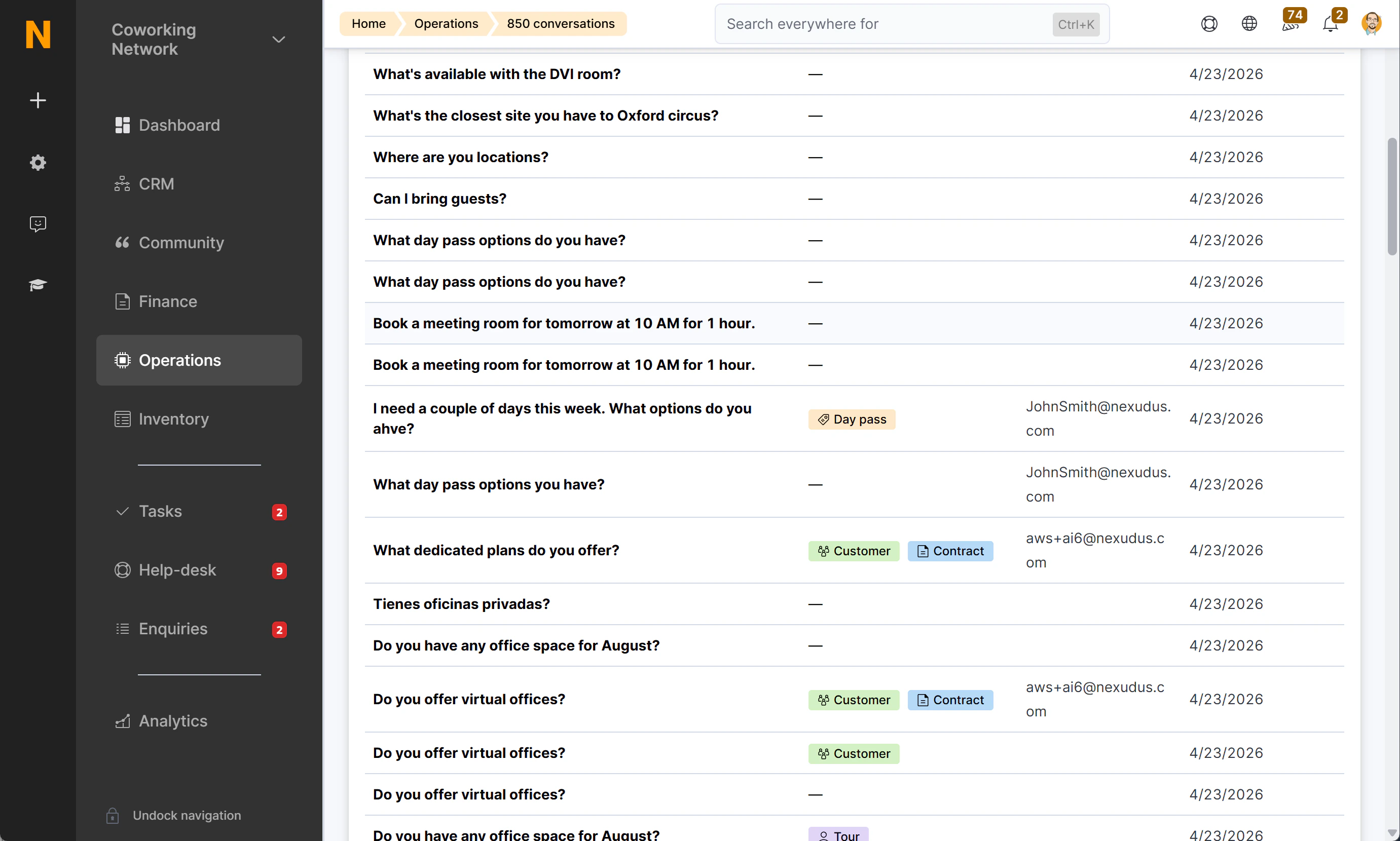
| Column | What it shows |
|---|---|
| Message | The opening message of the conversation, truncated to 120 characters |
| Conversion | Colour-coded badges showing what outcome the conversation produced (if any) |
| User | The logged-in user who had the conversation; blank for anonymous visitors |
| Date | When the conversation started, newest first |
Viewing a full conversation
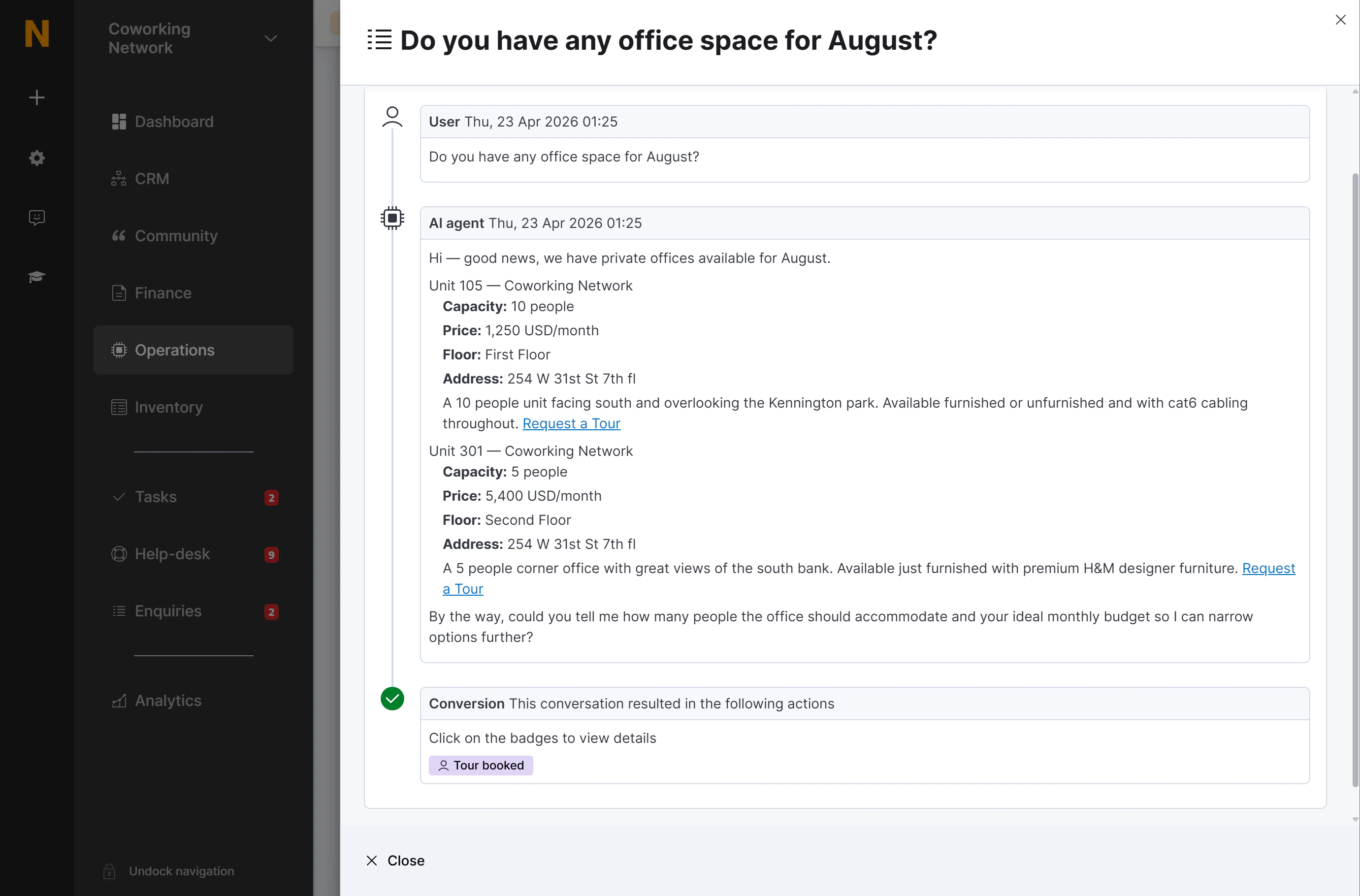
Click any row to open the conversation detail panel. This shows the complete message thread:- User messages — person icon, labelled “Visitor”
- AI responses — computer icon, labelled “AI agent”
- Messages are rendered as formatted text (bold, links, headings as written by the AI)
- Internal tool calls are hidden — you see only the natural-language exchange, not the underlying data requests
Understanding conversion badges
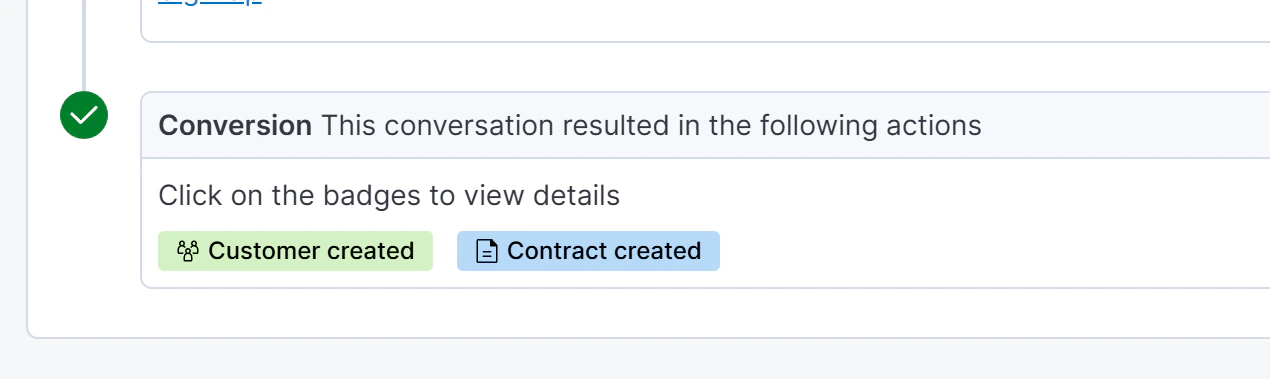
| Badge | Colour | What it means | Click to open |
|---|---|---|---|
| Tour booked | Lavender | A Visitor record was created as a result of this conversation | The Visitor record |
| Customer created | Green | A new Coworker (customer) account was created | The Coworker profile |
| Contract created | Blue | A membership contract was created | The contract |
| Day pass purchased | Peach | A day pass was purchased | The CoworkerProduct record |
AI conversations in Visitor records
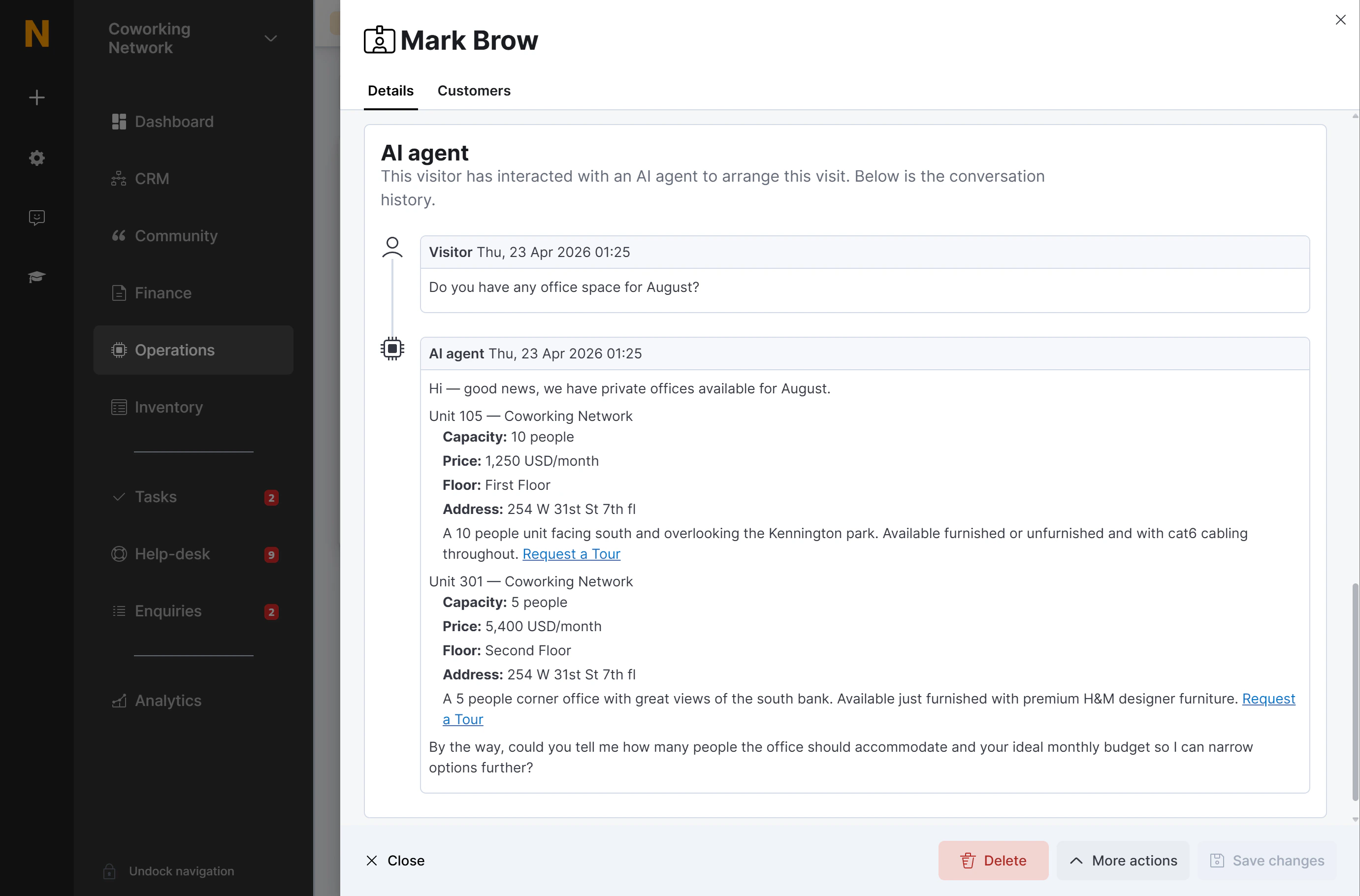
When a prospect books a tour through the AI assistant, the full chat conversation appears directly on their Visitor record. This gives your team context before the visit — they can see exactly what the prospect asked about, which offices interested them, and what requirements they mentioned. To find it:- Go to Spaces > Visitors and open the relevant visitor.
- Scroll to the AI Agent Conversation section.
- The full thread is displayed with the same user / AI agent layout as in the AI Conversations list.