You control what the AI presents using the same Nexudus records you already manage, plus a small set of AI-specific fields on products, tariffs, and private offices.
The “AI Ready” badge
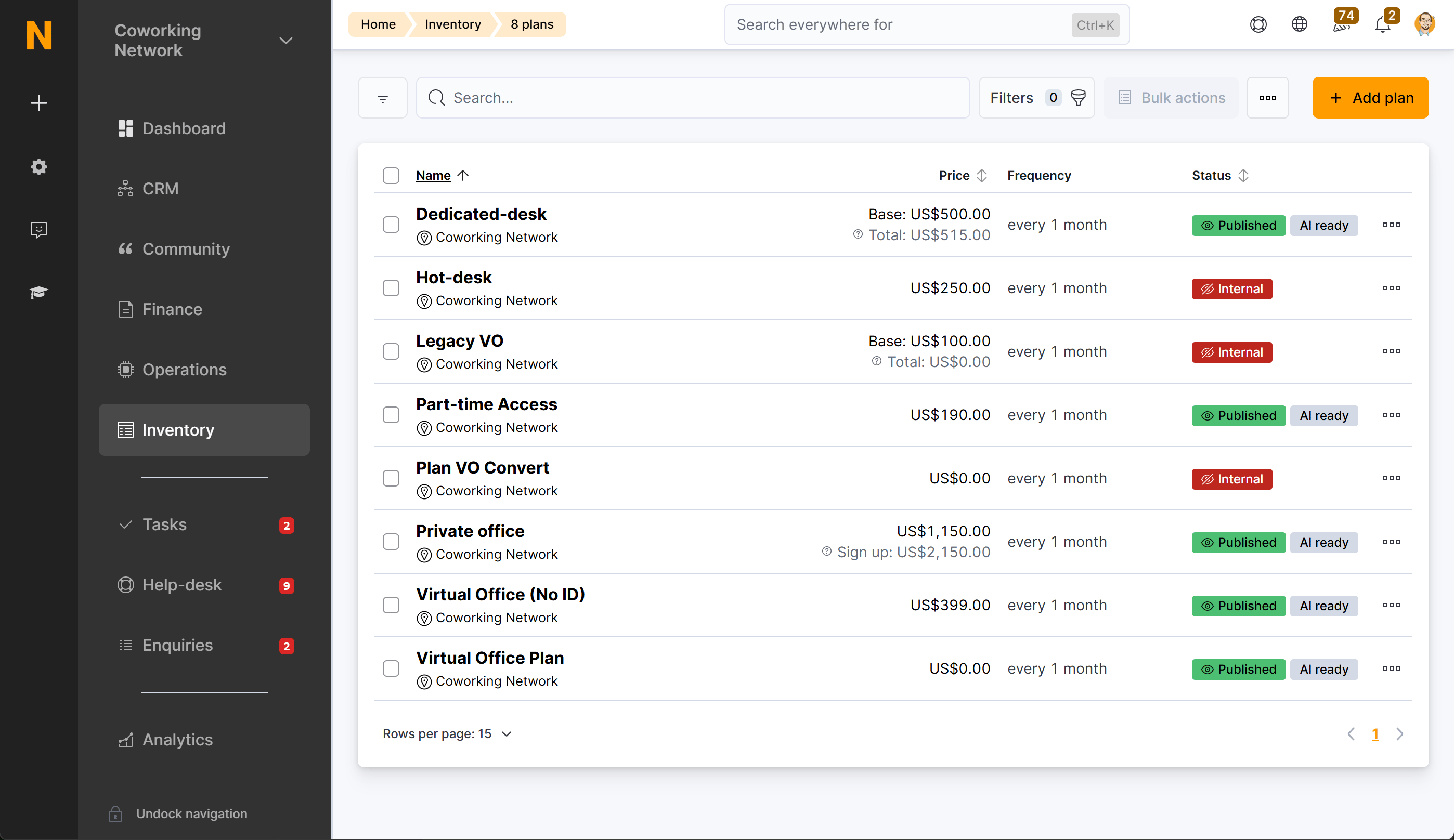
In the administration panel, any item that has Available to AI switched on shows an AI Ready badge in the list view. This makes it easy to see at a glance which of your plans, products, and offices are currently accessible to the AI without opening each record individually.
The badge appears in:
- Billing > Plans — for each membership plan tariff enabled for AI
- Billing > Products — for each day pass product enabled for AI
- Spaces > Floor Plan > Desks & Offices — for each private office enabled for AI
Where to find the AI settings
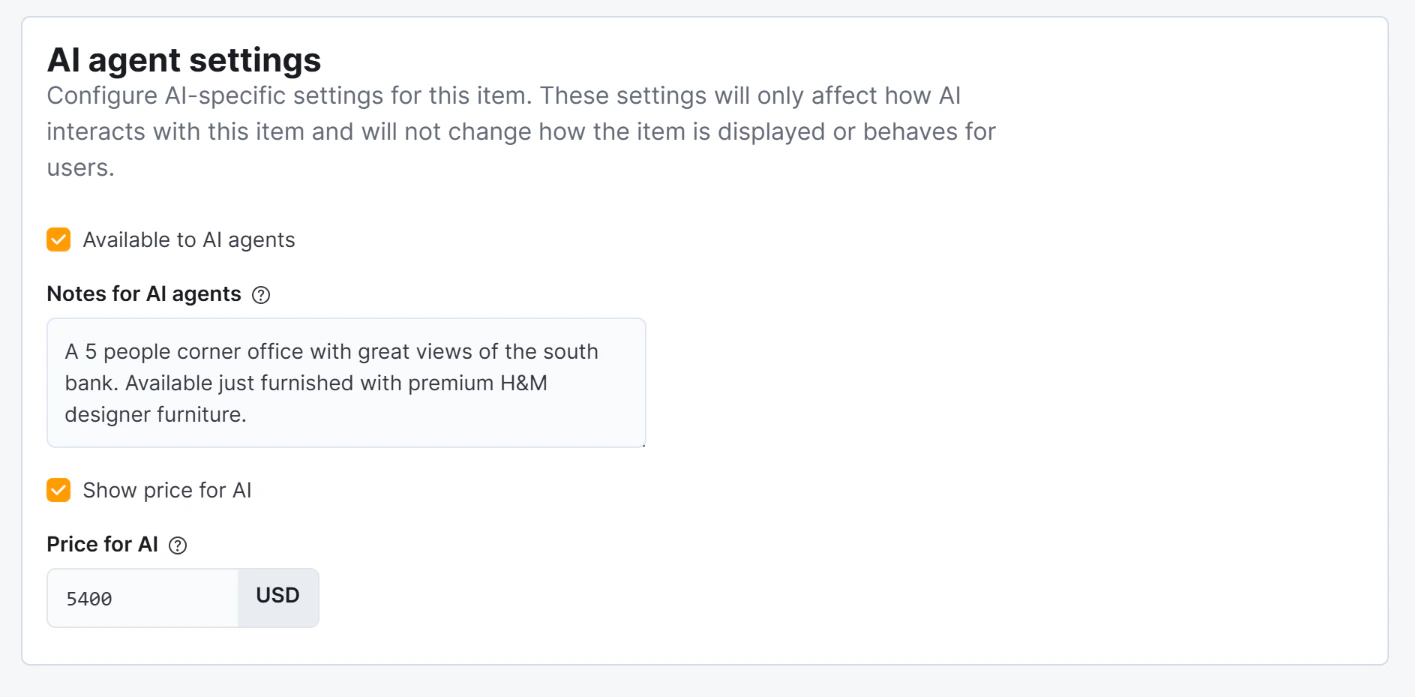
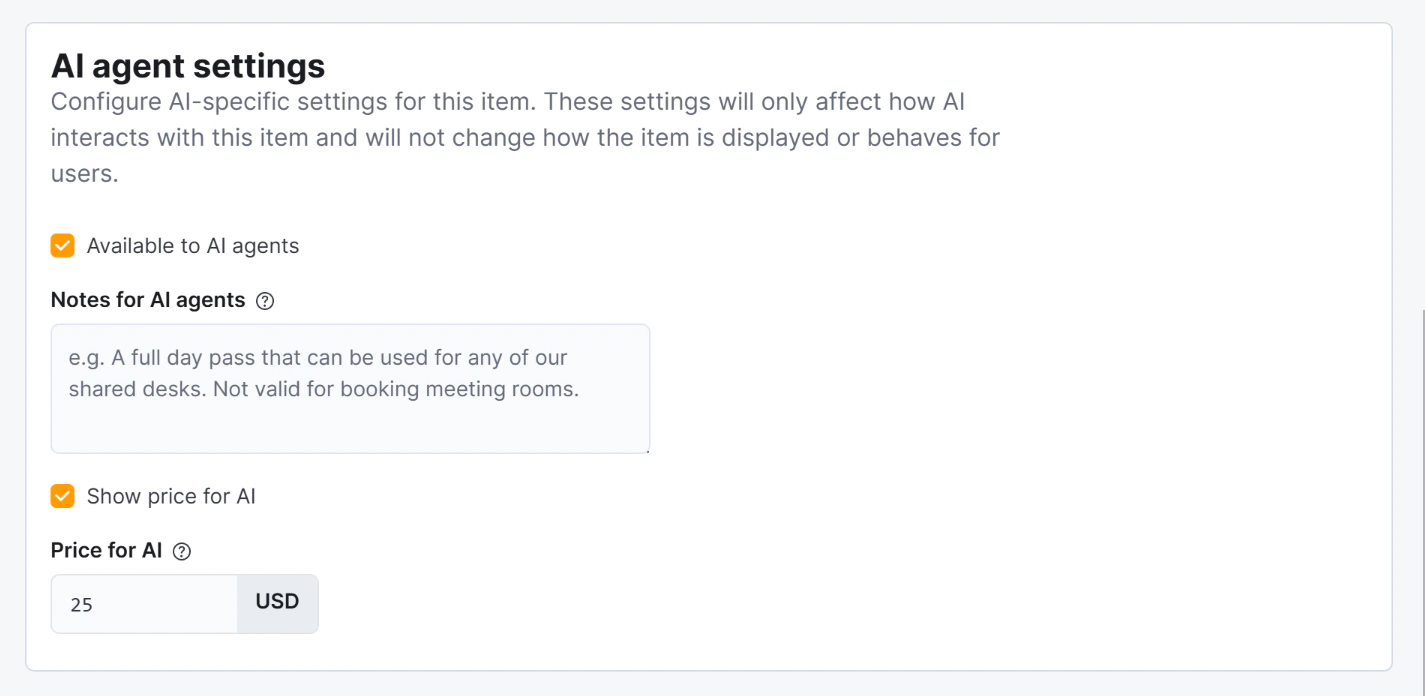
On each plan, product, or private office record, the AI-specific fields are grouped together in a section called “AI agent settings”. This section is separate from the general settings for the item.
The fields for Notes for AI, Show price to AI, and Price for AI are disabled until Available to AI is switched on — you must enable the master switch before you can configure the other options.
AI-specific fields
These four fields appear in the AI agent settings section on Day Pass products, Membership Plans, and Private Office floor plan items:
| Field | What it does |
|---|
| Available to AI | Master switch. If off, the AI will never mention this item — even if it exactly matches what the user asked for. Enabling this is what triggers the AI Ready badge in the list view. |
| Show price to AI | If off, the AI describes the item without mentioning its price. Useful when pricing is negotiated individually. Disabled until Available to AI is on. |
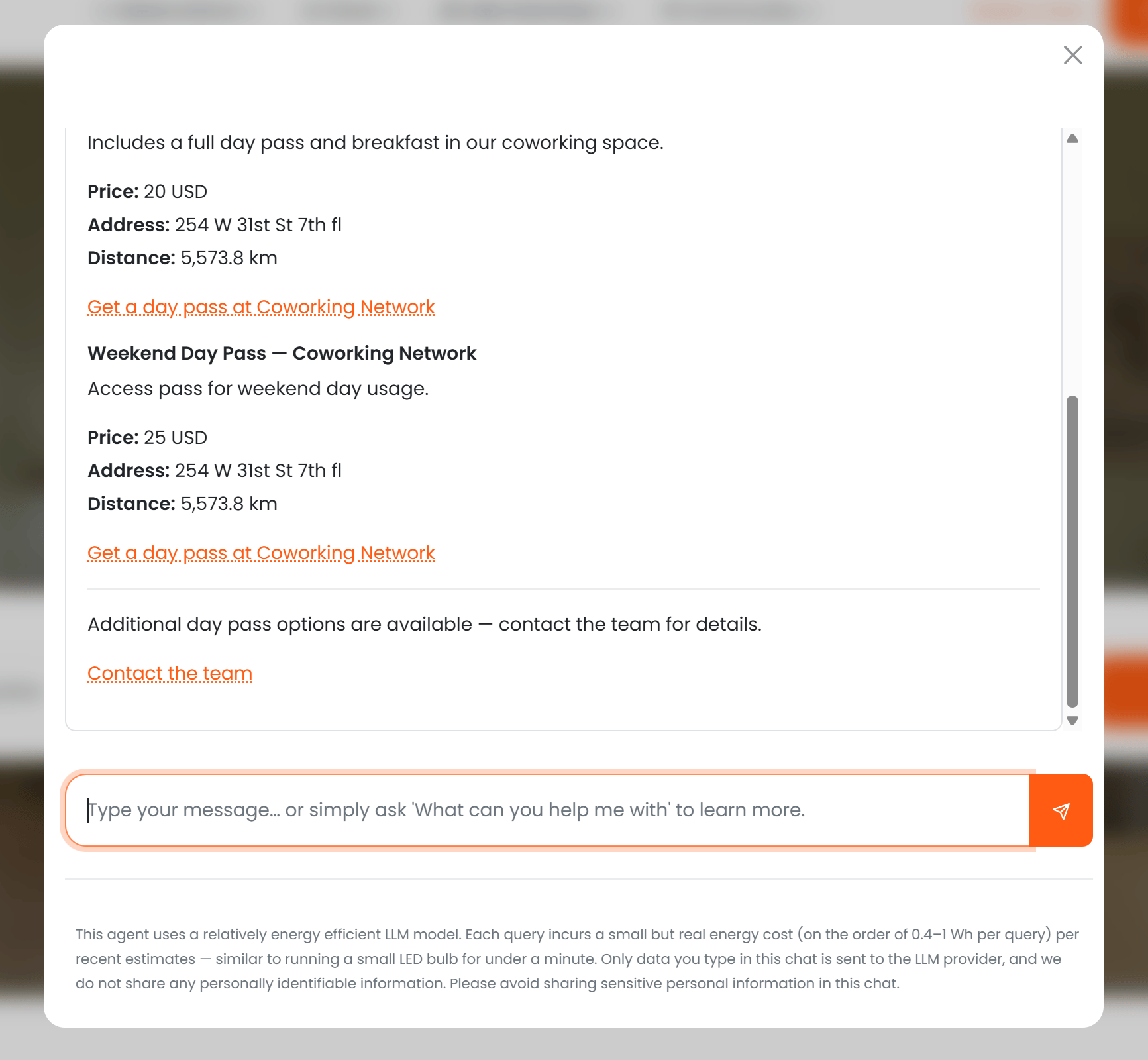
| Price for AI | An alternative price shown only in the AI chat. Overrides the regular price in AI responses. Useful for promotional rates. Disabled until Available to AI is on. |
| Notes for AI | Private notes the AI uses when describing this item. Not shown to the user word-for-word — the AI incorporates these notes naturally into its response. Use this to add context such as “this office has just been refurbished” or “available from the 1st of next month.” Disabled until Available to AI is on. |
Quick reference
| I want the AI to… | Settings |
|---|
| Show and sell this item with full details | Available to AI ✓, Visible ✓ |
| Acknowledge this item exists but not show price or a link | Available to AI ✓, Visible ✗ |
| Never mention this item at all | Available to AI ✗ |
| Describe the item without showing any price | Available to AI ✓, Show price to AI ✗ |
| Show a different price than the regular one | Available to AI ✓, Show price to AI ✓, set Price for AI |
| Give the AI extra context for its descriptions | Available to AI ✓, fill in Notes for AI |
Access control per capability
The AI follows exactly the same access rules as the rest of your portal. There is no separate AI-level access control — you manage it in the same places you already use.
| Capability | Access controlled by |
|---|
| FAQ answers | The Access > FAQs setting in your portal configuration: Everyone / Only members / Only contacts |
| Meeting rooms & resources | The Visible, Only for members, and Only for contacts flags on each resource |
| Location information | Always public — no restrictions apply |
| Day passes | The Available to AI and Visible fields on each product |
| Membership plans | The Available to AI and Visible fields on each tariff |
| Private offices | The Available to AI field on each floor plan item |
If your FAQ articles are set to “Members only”, a prospect who is not logged in will receive a message saying they need to be a member to access that information — not the answer itself. The same applies to “Contacts only”. This is handled automatically; you do not need to configure anything in the AI separately.