Virtual Office Onboarding
The virtual office onboarding flow guides new virtual office members through a structured setup process, collecting company details, personal information, identity verification, and mail handling preferences.
Onboarding steps
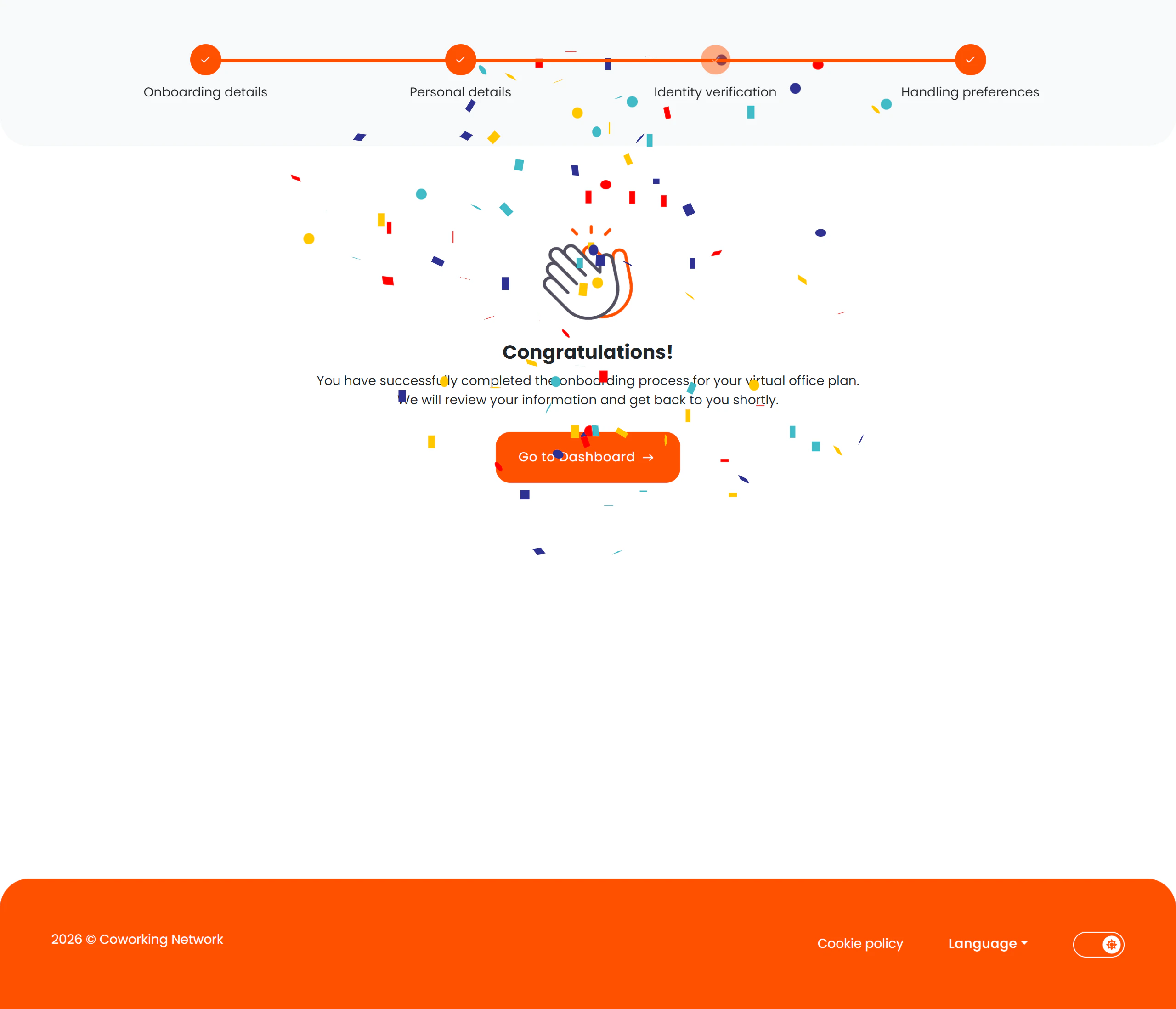
The wizard uses a visual progress stepper so members always know where they are in the process.
| Step | Name | Description |
|---|
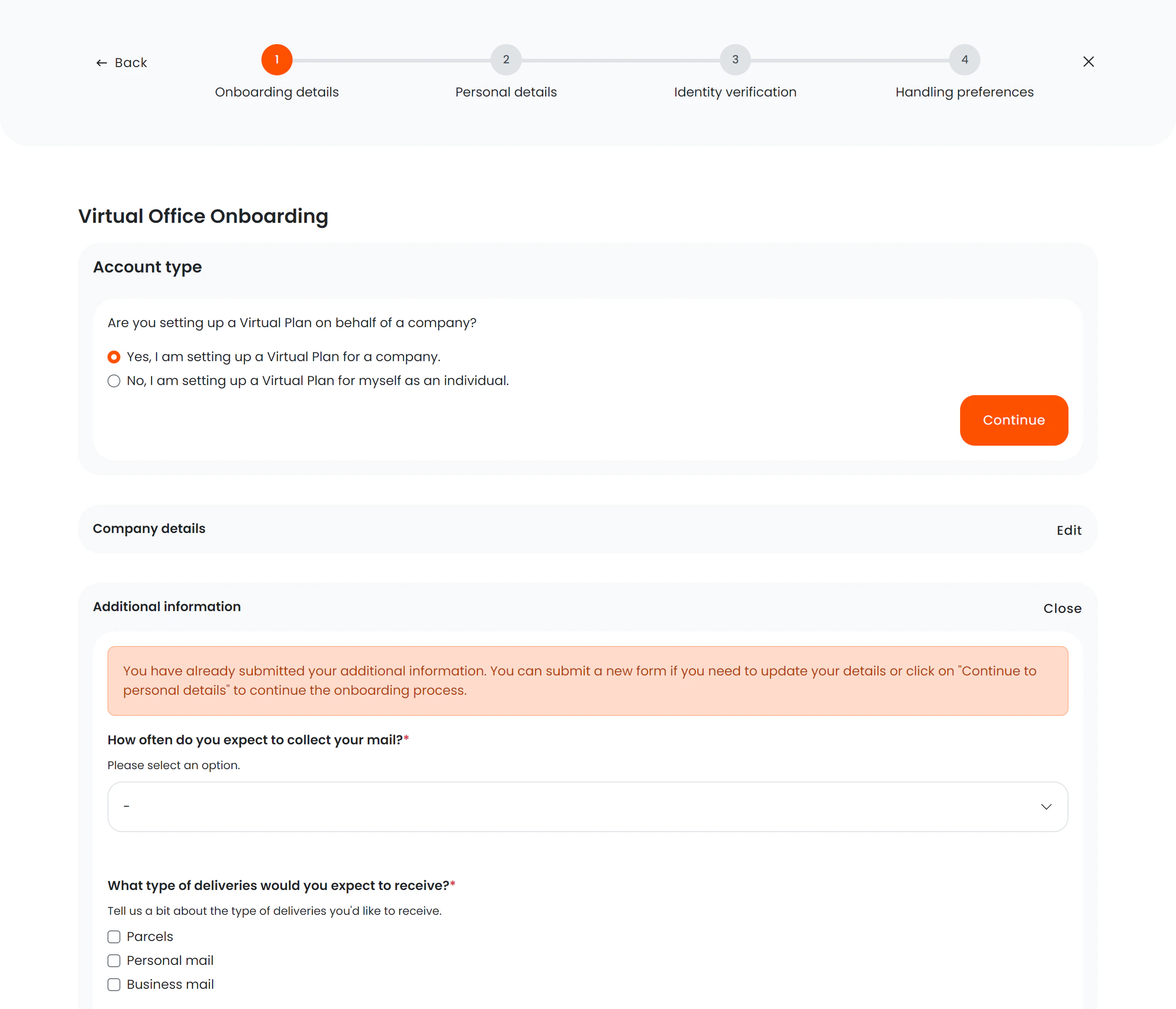
| 1 | Company details | Company and contract information, including director/contact details |
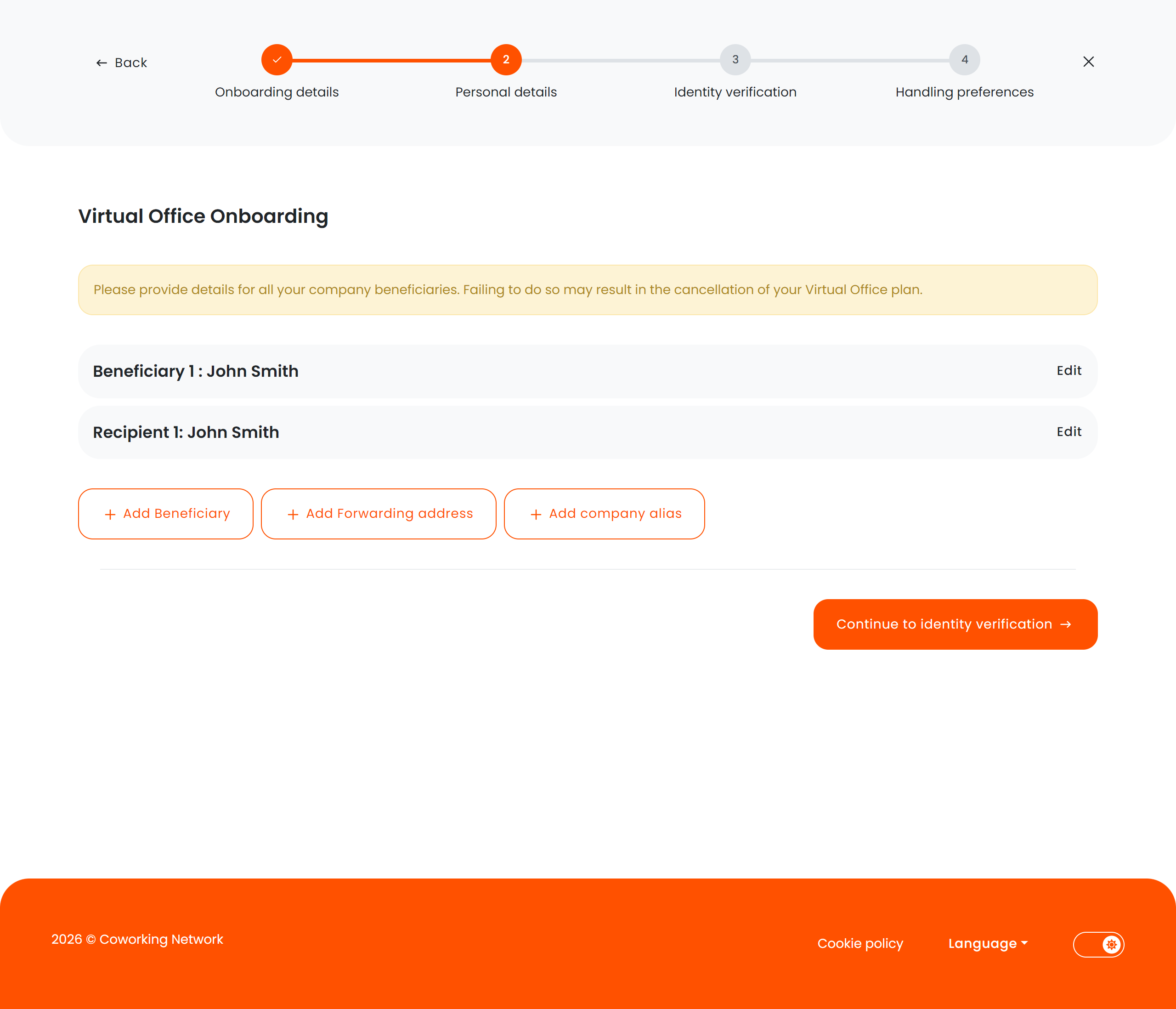
| 2 | Personal details | Member’s personal information |
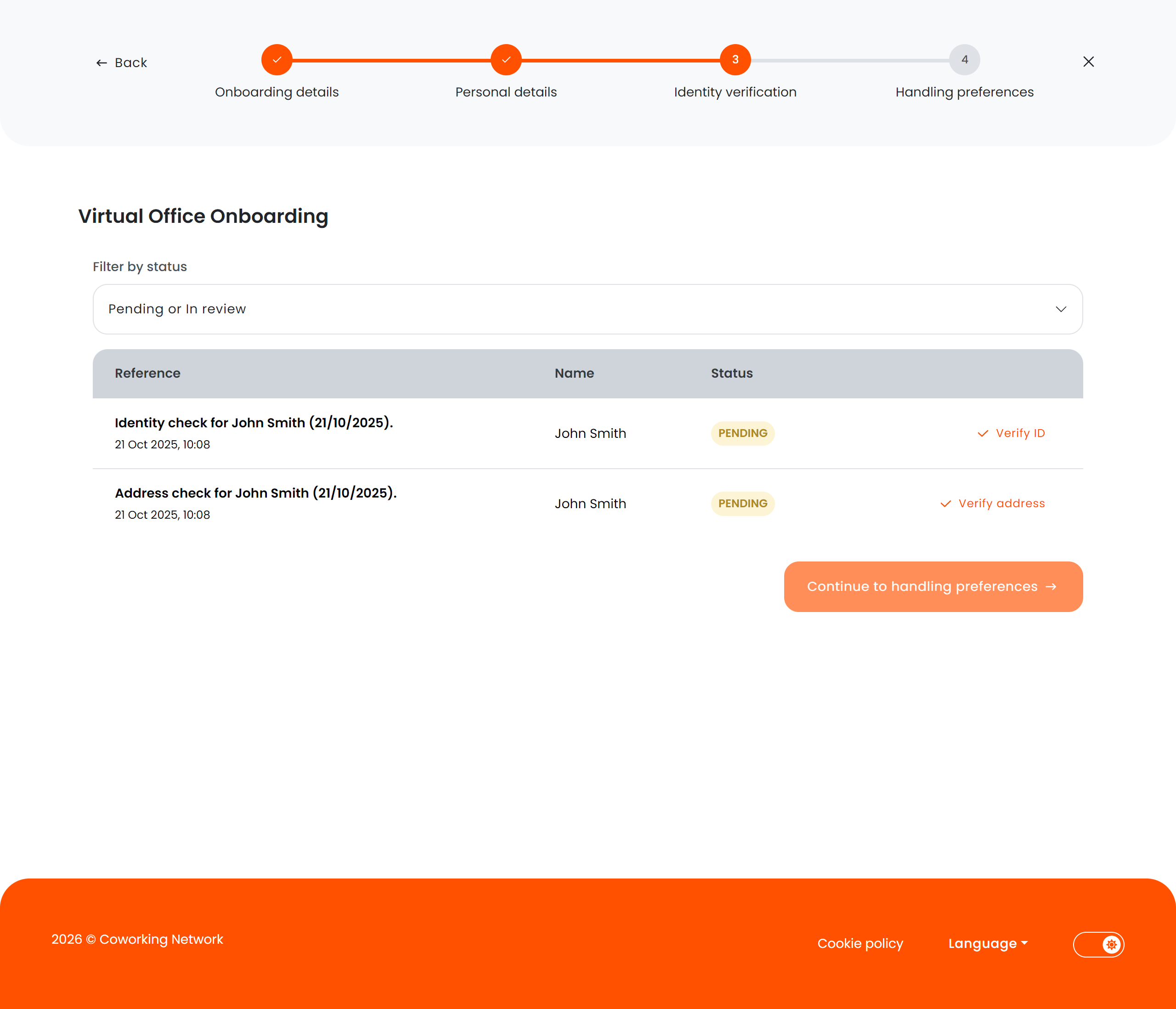
| 3 | Identity verification | Document upload for identity checks (conditional — only if required) |
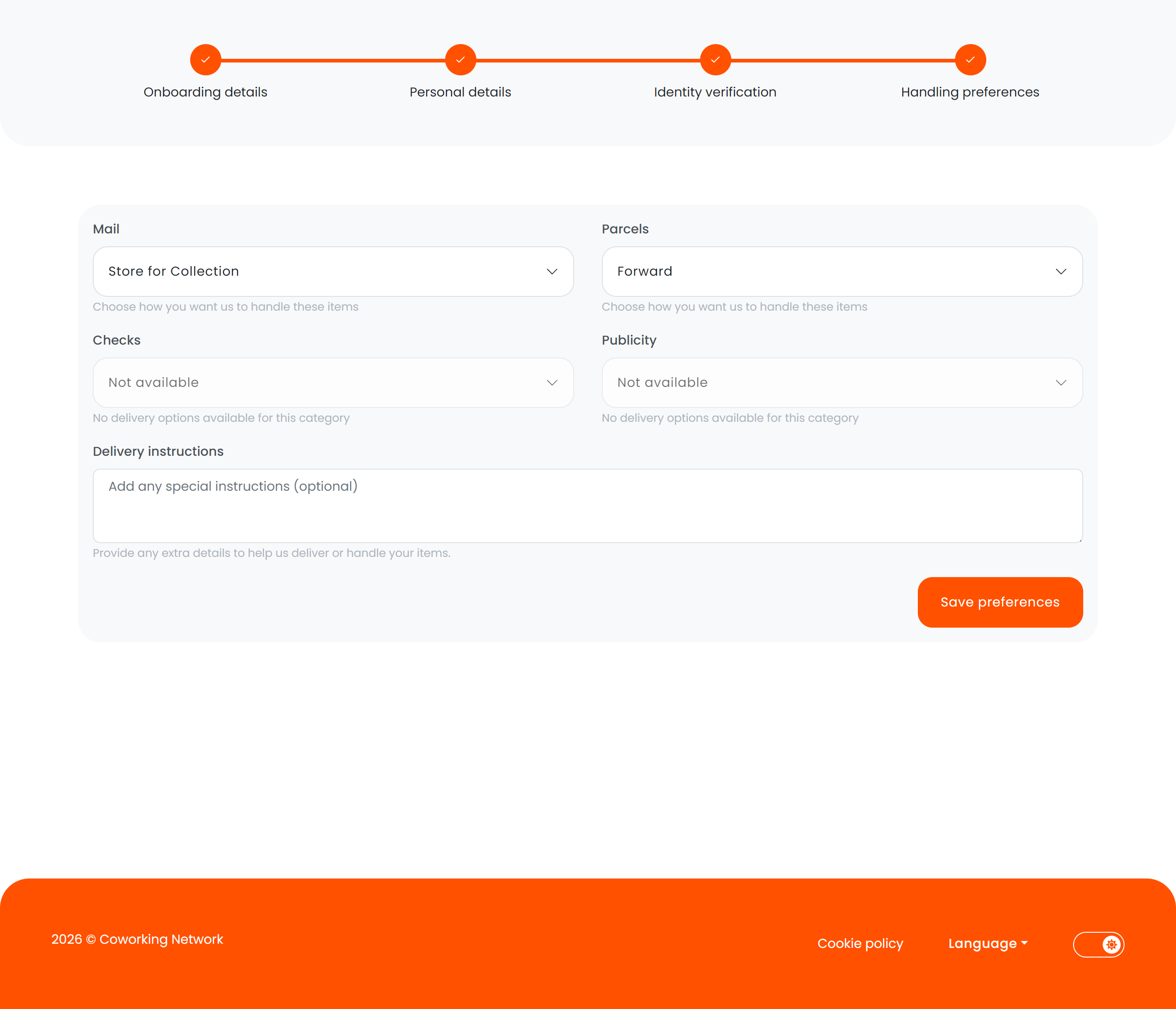
| 4 | Mail preferences | Mail and delivery handling preferences |
| 5 | Complete | Confirmation screen indicating setup is finished |
Dynamic step count
If your location does not require identity verification, step 3 is automatically skipped and the wizard adjusts to show fewer steps.
Key features
- Smart routing — the wizard detects which steps have already been completed and skips them on return visits.
- Exit confirmation — if a member tries to leave mid-process, a modal asks for confirmation to prevent accidental data loss.
- Profile mismatch alert — if the signed-in member doesn’t match the expected virtual office profile, a warning is displayed.
- Custom signup fields — form fields adapt based on the tariff/plan the member has selected.
- Director/contact form — collects information about company directors or other contact persons.
- Step-by-step navigation — members can move forward and backward between steps using next/back buttons.
Step 1 — Company details
- Company name and registration
- Contract information
- Director/contact person details
Step 2 — Personal details
- Full name, address, contact information
- Same fields as the personal information page, scoped to onboarding
Step 3 — Identity verification (conditional)
- Upload identity documents (passport, ID card, etc.)
- Only displayed when
RequiresIdentityChecks is enabled for the location
Step 4 — Mail preferences
- Delivery handling instructions
- Forwarding preferences
- Notification settings for incoming mail
Step 5 — Completion
- Confirmation that onboarding is complete
- Links to the dashboard or next steps
State detection
The onboarding flow tracks completion status through metadata flags:
| Flag | Effect |
|---|
RequiresIdentityChecks | Controls whether the identity verification step appears |
HasSubmittedForm | Detects whether the member has already completed onboarding |
Virtual office onboarding is separate from the standard member registration flow. It is specifically designed for services that require additional
compliance steps like identity verification and mail handling setup.