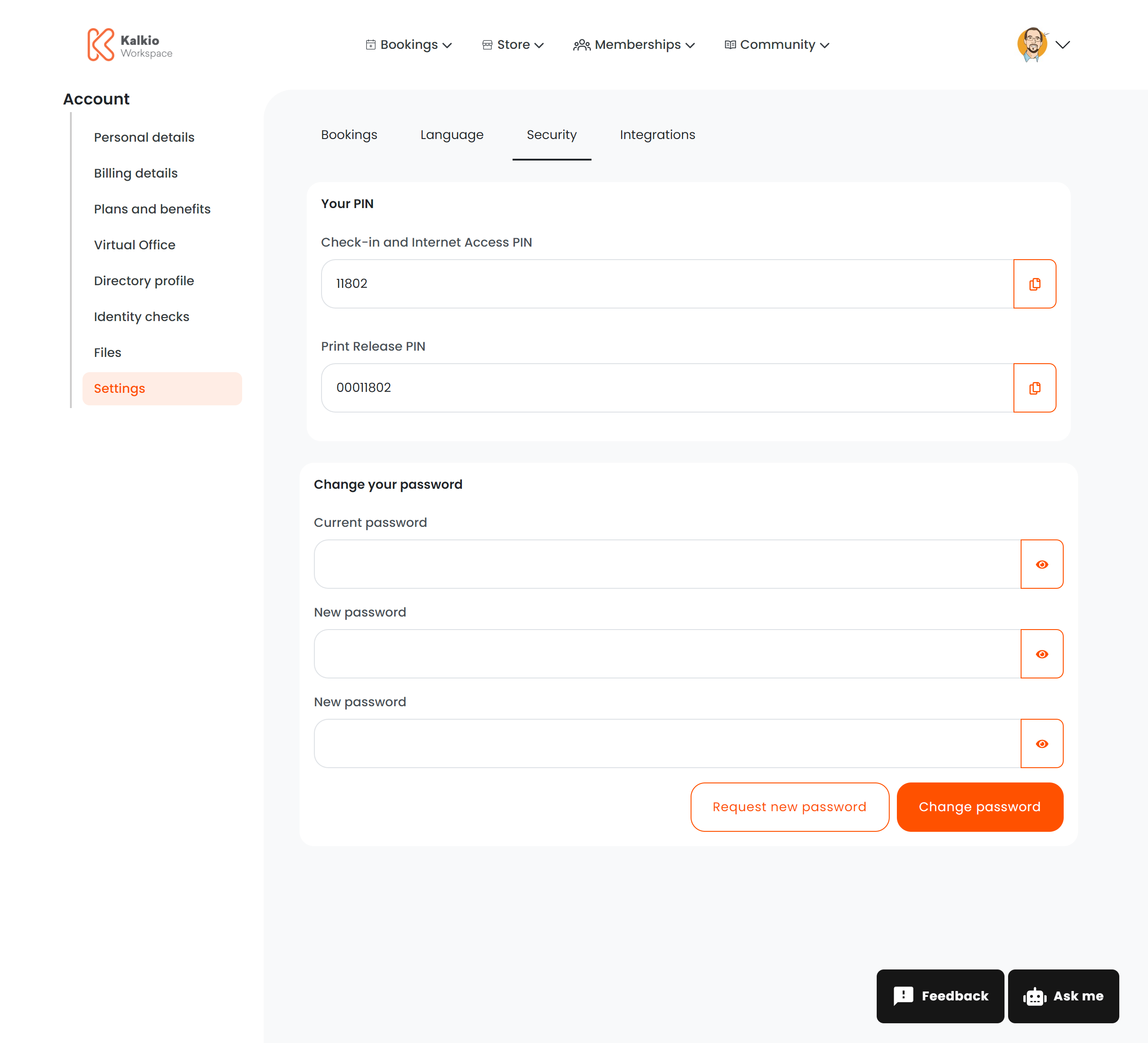
The credentials page lets members manage their account security — changing passwords and viewing access PINs.
What members see
PIN codes
A read-only section displaying the member’s access PINs with copy-to-clipboard buttons:
| PIN | Description |
|---|
| Check-in PIN | Used for signing in at the space (e.g. kiosks) |
| Internet access PIN | Used for Wi-Fi or network authentication |
| Print release PIN | Used for releasing print jobs (shown if different from internet PIN — e.g. PaperCut integration) |
Change password
A form to update the member’s account password:
| Field | Description |
|---|
| Current password | Verify identity before changing |
| New password | Must meet strength requirements |
| Confirm new password | Re-enter to confirm |
Request new password
An alternative to manual password changes — sends a password reset link to the member’s email address. This is useful when the member has forgotten their current password but is still signed in.
Configurable sections
| Setting | Default | Effect |
|---|
| Show PIN section | On | Display the access PINs |
| Show password section | On | Display the change password form |
| Show request password button | On | Display the email reset link option |
PINs are automatically generated. If you use PaperCut for printing, the print release PIN is displayed separately.