

Overview
Widget embedding allows you to integrate specific sections of your members portal directly into your coworking space’s marketing website. Instead of redirecting customers to a separate portal domain, they can access booking forms, member directories, or other portal features while staying on your main website. This creates a seamless experience where customers never leave your brand environment, improving conversion rates and maintaining consistent visual identity throughout their journey.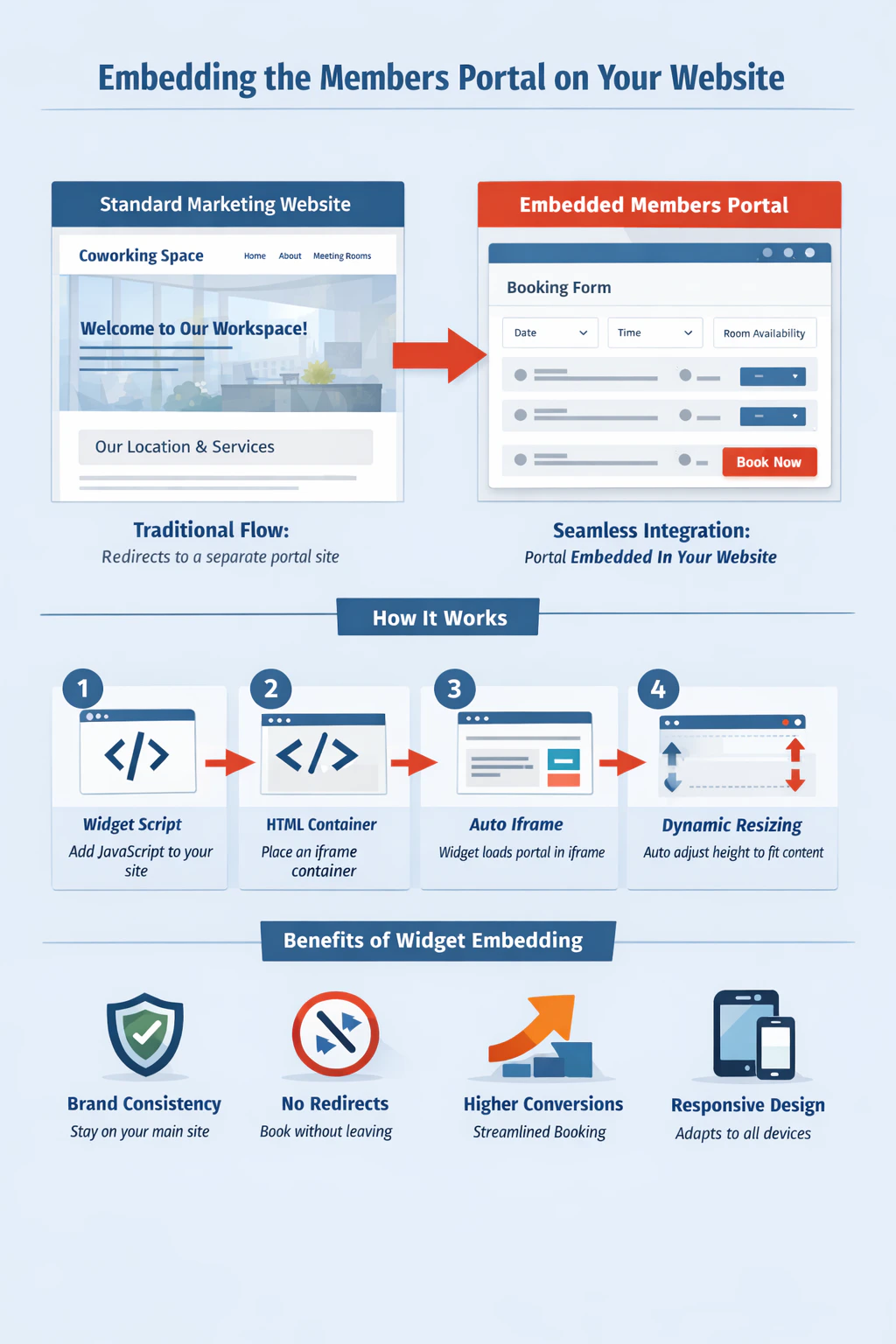
Purpose
Coworking spaces often maintain separate marketing websites to showcase their brand, location, and services. However, when customers want to book a meeting room or view available desks, they typically need to navigate to a different portal domain, breaking the user experience flow. Widget embedding solves this by allowing you to:- Maintain brand consistency - Customers stay within your website’s design and navigation
- Reduce friction - No redirects or separate login processes required
- Improve conversion - Streamlined booking flows directly on your marketing pages
How It Works
The widget system uses an iframe-based architecture with intelligent communication between your website and the embedded portal content. Here’s what happens technically:Widget Script Integration
Your marketing website includes a lightweight JavaScript file that handles all iframe communication and dynamic resizing.
Container Definition
You place a simple HTML container on your page that specifies which portal section to embed and display preferences.
Automatic Iframe Creation
The widget script automatically creates and configures an iframe pointing to your portal, handling security
permissions for features like geolocation and camera access.
Dynamic Height Management
The embedded portal communicates its content height back to your website, automatically resizing the iframe to prevent
scrollbars and maintain a native feel.
Implementation Process
Basic Setup
Add the widget script to your website’s HTML head section:Embedding Portal Sections
Create a container element where you want the portal to appear:Nexudus-widget-iframe ID or class and creates the embedded iframes when the page loads.
Configuration Options
The full URL to the portal section you want to embed. This should point to your location’s portal domain and the
specific page you want to display.
Set to “true” to hide the portal’s header navigation, creating a more integrated appearance within your website.
Defaults to showing the header if omitted.
Set to “true” to hide the portal’s footer, creating a more streamlined appearance. Defaults to showing the footer if
omitted.
Set to “true” to hide the portal’s logo, useful when you want to maintain full brand control. Defaults to showing the
logo if omitted.
Core Behavior
Multiple Widgets on a Single Page
You can embed multiple portal sections on the same page by creating multiple container divs with theNexudus-widget-iframe class:
Responsive Design
The embedded portal automatically adapts to your website’s container width while maintaining its responsive behavior. The iframe adjusts its height dynamically as content changes, such as when filtering booking options or expanding details.Navigation Handling
When customers navigate within the embedded portal, the iframe height automatically adjusts to accommodate the new content. The widget also handles scroll-to-top behavior, ensuring customers see new pages from the beginning.Permission Management
The widget automatically grants necessary permissions for portal features that require device access:- Geolocation - For location-based features and maps
- Camera - For profile photos and document uploads
- Microphone - For video calling integrations
Security Considerations
All communication between your website and the embedded portal happens through secure postMessage APIs. The iframe operates in a sandboxed environment while still allowing necessary functionality.Live Example
The following is a live example of a marketing page that embeds the portal booking page without a header or footer. You can also open the example in a new tab.Common Integration Patterns
Meeting Room Booking
Embed booking forms directly on your “Meeting Rooms” marketing page, allowing visitors to check availability and reserve spaces without leaving your site.
Member Directory
Display your coworking community directly on your “Community” page, showcasing the vibrant network of professionals at
your location.
Event Listings
Show upcoming events and workshops on your homepage or dedicated events page, with integrated registration
capabilities.
Desk Availability
Add real-time desk booking to your “Hot Desks” page, letting customers see and reserve available workspace immediately.
Important Considerations
Content Height Management
The widget continuously monitors content height changes and automatically adjusts the iframe size. This handles dynamic content like expanding forms, loading states, and pagination without requiring manual configuration.Cross-Domain Communication
Since the embedded portal runs on your Nexudus domain while being displayed on your marketing website, all interactions use secure cross-domain messaging protocols to maintain functionality.Mobile Responsiveness
The embedded portal inherits responsive behavior from both your website’s container styling and the portal’s internal responsive design. Test across different screen sizes to ensure optimal display.SEO Implications
Content within the iframe is not directly indexable by search engines as part of your main website. Consider this when planning which sections to embed versus link to directly.Performance Impact
Each embedded widget adds an additional HTTP request and iframe to your page. Consider the performance trade-offs, especially if embedding multiple portal sections on a single page.Troubleshooting
Widget Not Appearing
- Verify the widget script loads successfully from the CDN
- Check that the container element uses either the
Nexudus-widget-iframeID or class - Ensure the URL attribute points to a valid portal page
Height Issues
- The widget automatically manages height, but complex layouts might need additional CSS styling on your container
- Check browser console for any cross-domain communication errors
Mobile Display Problems
- Ensure your website’s viewport meta tag includes appropriate scaling settings:
- Check that your container element has adequate padding and doesn’t constrain the iframe width
- Test on actual mobile devices, not just browser emulation, as iframe behavior can differ
- Verify touch events and gestures work correctly within the embedded portal
- Consider adding CSS media queries to adjust container sizing for smaller screens