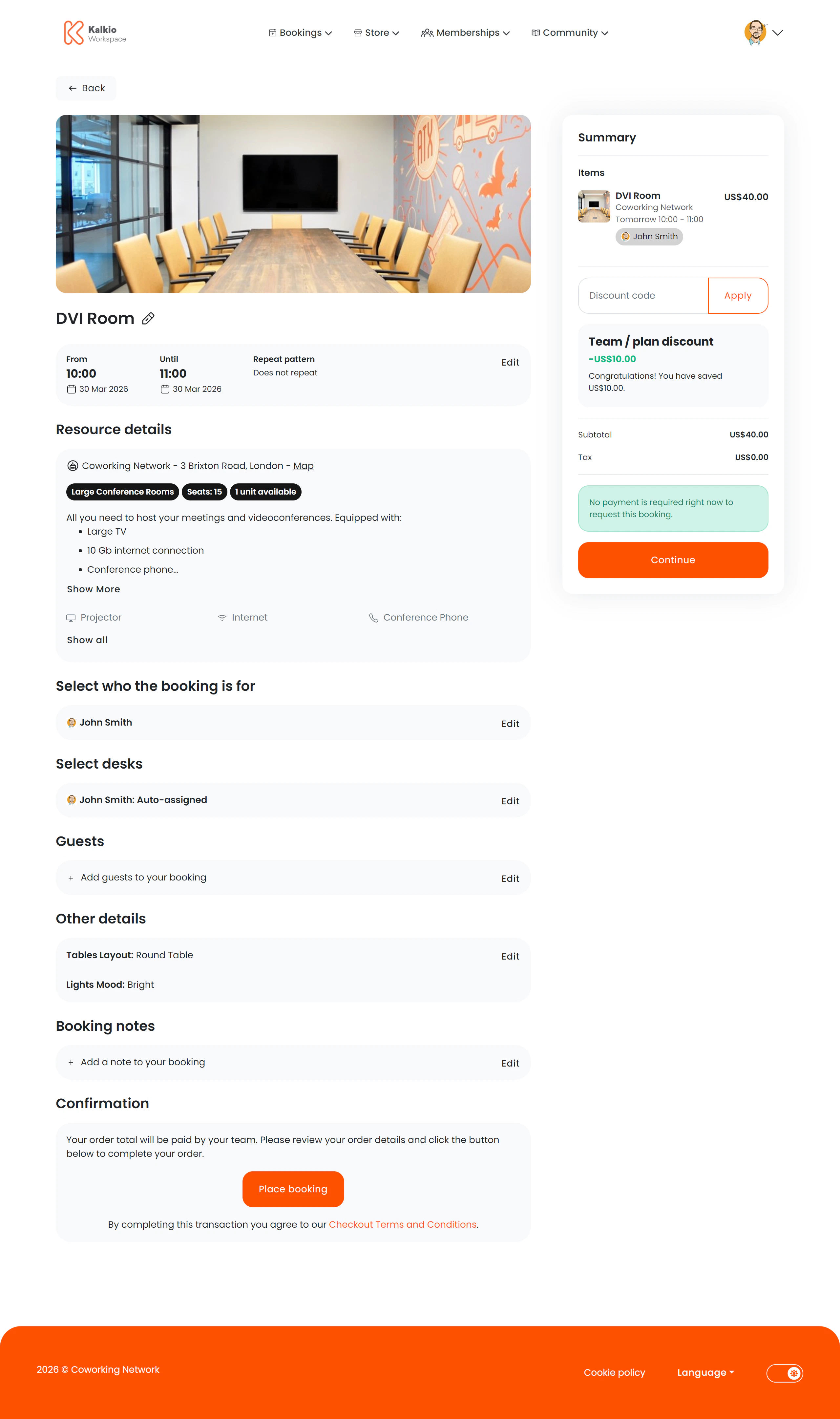
The booking checkout page is where members finalise a resource booking — selecting dates, desks, visitors, add-ons, and completing payment.
What members see
The page uses a two-column layout: booking details on the left and a basket summary on the right.
Booking details (left column)
| Section | Description |
|---|
| Resource information | Resource image, name, features, and selected dates |
| Booking for | Specifies who the booking is for (self or a team member) |
| Desk selection | Choose a specific desk if the resource supports desk-level booking |
| Visitors | Add and manage visitors who will attend |
| Add-on products | Select related products to include with the booking (e.g. catering, AV equipment) |
| Custom fields | Fill in any custom fields your space requires for bookings |
| Notes | Add optional booking notes or comments |
| Payment method | Choose how to pay for the booking |
Basket summary (right column)
A running total showing line items, taxes, and the final amount. Updates in real time as the member adds or removes items.
Key features
- Create or edit — the same page handles both new bookings and modifications to existing ones.
- Resource switching — members can change the selected resource via a modal without leaving checkout.
- Recurring bookings — set recurrence patterns for regular bookings.
- Real-time pricing — the basket recalculates as options change.
- Desk picker — visual desk selection for resources with assigned desks.
- Visitor tracking — add visitor names and details directly during checkout.
Configurable sections
Every section of this page can be independently shown or hidden from the Page Editor:
| Setting | Default | Effect |
|---|
| Show resource image | On | Display the resource photo |
| Show resource details | On | Display resource features and info |
| Show desk selection | On | Enable desk picker |
| Show visitors | On | Show visitor management fields |
| Show add-on products | On | Allow product add-ons |
| Show custom fields | On | Display custom field inputs |
| Show notes | On | Show the notes field |
| Show payment method | On | Show payment method picker |
| Show basket summary | On | Show the cost summary sidebar |
| Show back button | On | Show back navigation |
If your space doesn’t use desk-level bookings or visitor tracking, turn those sections off to keep the checkout flow simple and focused.