

Predicted Bookings
The Predicted Bookings feature helps your members save time by intelligently surfacing booking suggestions based on their past behaviour. Instead of manually repeating the same booking every week, members see ready-made suggestions on their personal dashboard — one click away from confirming.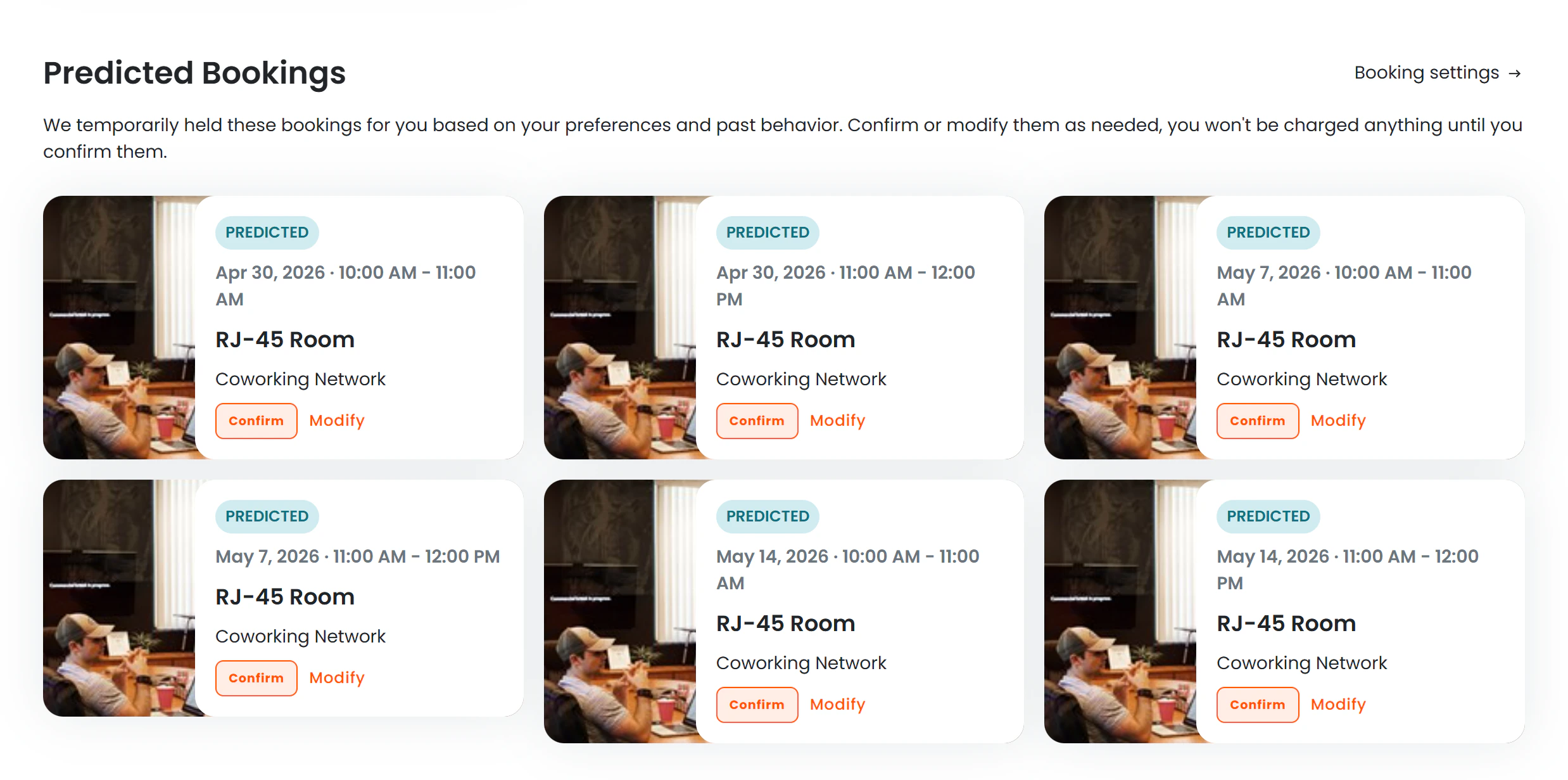
How It Works
Nexudus continuously monitors each member’s booking history over the previous 8 weeks. When the system detects that a member has booked the same resource at the same time on the same day of the week at least 3 times, it treats that as a recurring pattern and generates a suggestion for each matching upcoming date within the next 28 days. For example, if a member has booked Meeting Room A every Tuesday from 10:00–12:00 at least three times in the past 8 weeks, the system will suggest that booking for every upcoming Tuesday that doesn’t already have a confirmed booking in that slot.What counts as a pattern
| Condition | Requirement |
|---|---|
| Booking history window | Last 8 weeks |
| Minimum repetitions to qualify | 3 bookings |
| Pattern match criteria | Same resource + same day of week + same start time + same duration |
| Suggestion horizon | Next 28 calendar days |
| Maximum suggestions shown on dashboard | 6 |
What Members See
Predicted Bookings Section
When a member has qualifying patterns, a “Predicted Bookings” section appears on their personal dashboard, above or alongside their upcoming confirmed bookings. Each card displays:- A “Predicted” blue badge to distinguish suggestions from confirmed bookings
- The date and time range
- The resource (and desk name, if applicable)
- The location name
- A “Confirm” button to book the slot
- A “Modify” link to open the booking form with pre-filled details
Predicted bookings are not real bookings. They are suggestions held temporarily for the member. No charges apply until the member confirms.
Confirming a Predicted Booking
When a member clicks Confirm:-
A booking confirmation dialog opens, showing the full details of the resource, date, and time.
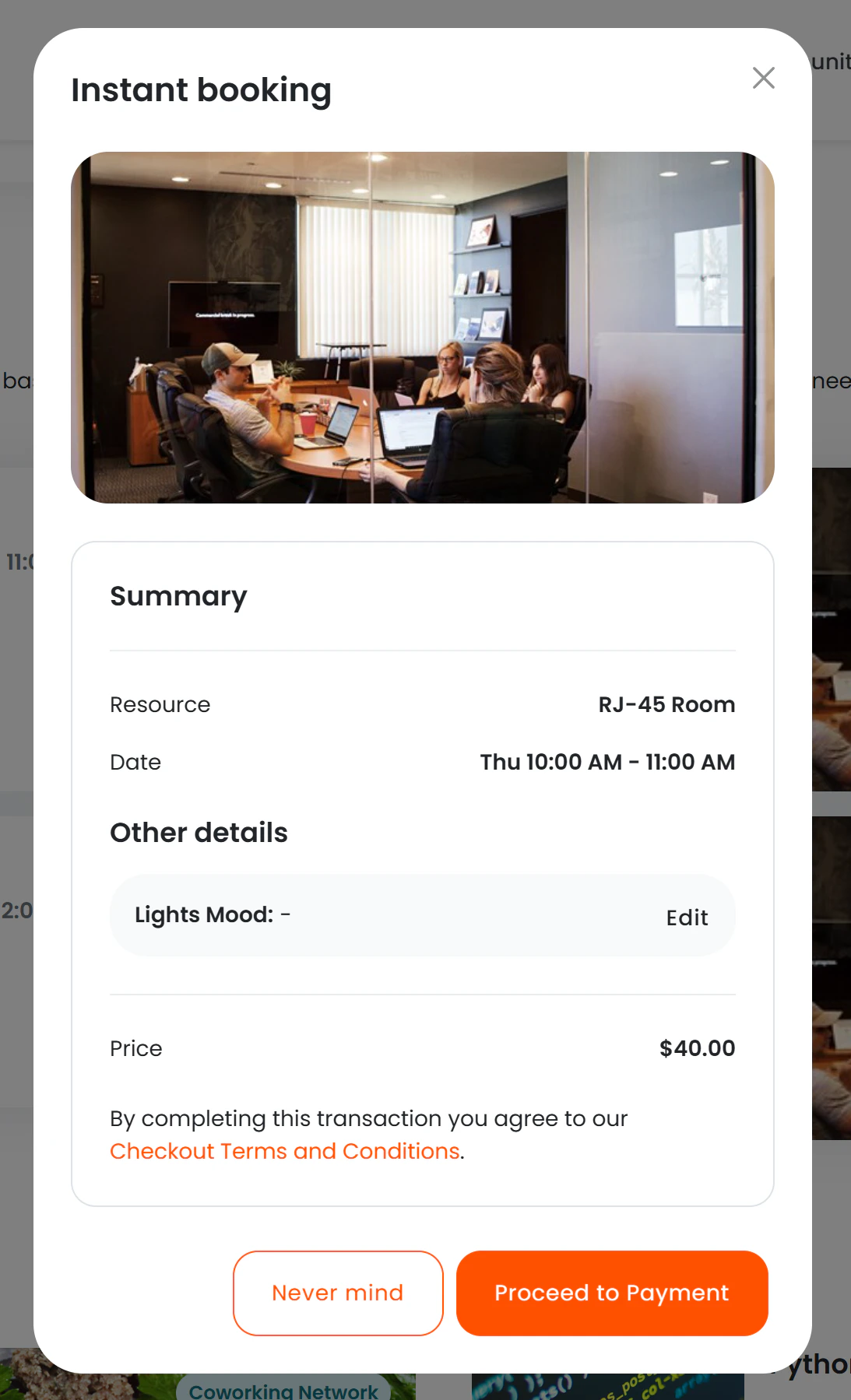
- The member reviews the booking, optionally modifies it (date, time, desk, add-ons), and clicks “Book now”.
- A final confirmation screen confirms the booking was saved.
Modifying a Predicted Booking
Members can click “Modify” instead of “Confirm” to open the standard booking form with all fields pre-filled. This is useful when the member wants to book a slightly different time, switch desks, or add services before confirming.Member Preferences
Members control their own predicted bookings behaviour from their Profile → Settings → Bookings section.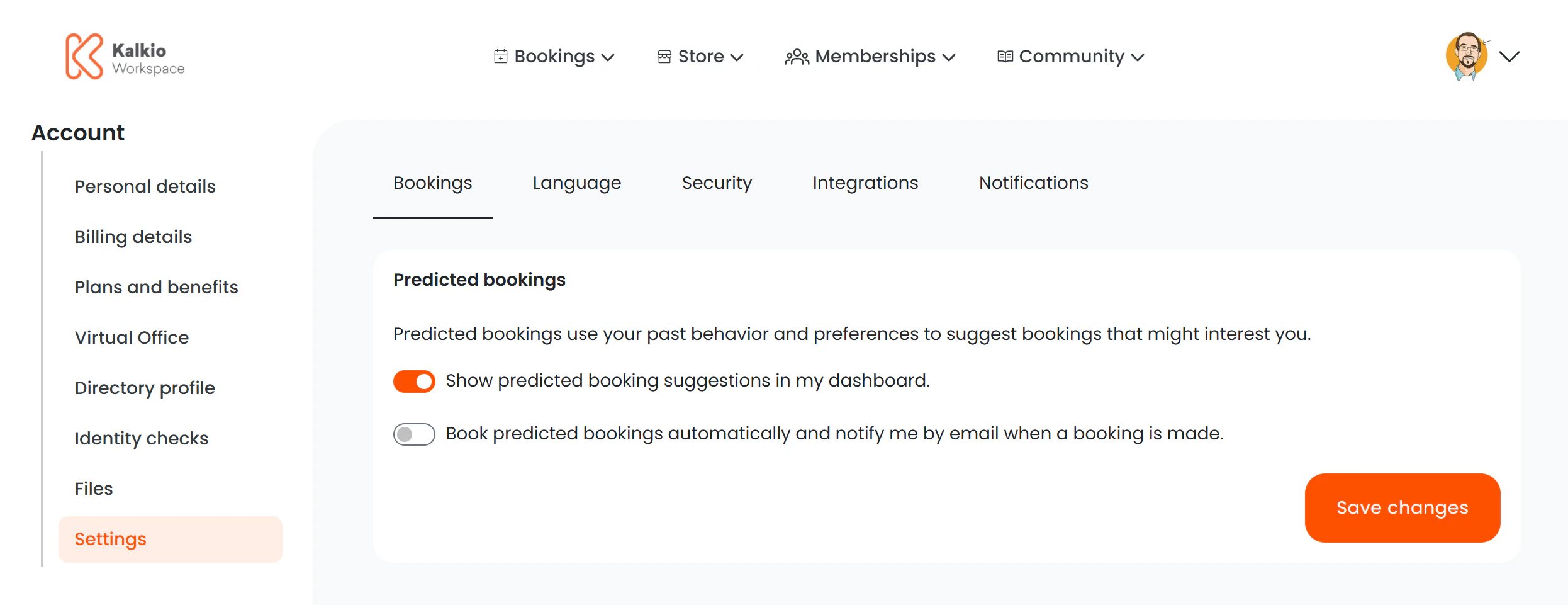
Available toggles
| Setting | What it does |
|---|---|
| Show predicted booking suggestions in my dashboard | Controls whether the Predicted Bookings section appears on the personal dashboard. Members can turn this off if they prefer not to see suggestions. |
| Book predicted bookings automatically and notify me by email when a booking is made | When enabled, Nexudus automatically confirms matching predicted bookings on the member’s behalf and sends an email notification for each one. The member does not need to click Confirm. |
Frequently Asked Questions
Why isn't a member seeing any predicted bookings even though they book regularly?
Why isn't a member seeing any predicted bookings even though they book regularly?
The member must have booked the exact same resource at the same start time and duration on the same day of the week at least 3 times within the last 8 weeks. Variations in time, duration, or resource prevent a pattern from forming. Also check that the Predicted Bookings section is enabled in the portal editor and that the member has not hidden it in their personal settings.
Can predicted bookings be created across different locations in a network?
Can predicted bookings be created across different locations in a network?
Yes. Patterns are detected per resource, which means a member who books the same resource in a specific location on a recurring basis will receive suggestions for that location. Patterns at different locations are tracked independently.
Can I stop specific members from using this feature?
Can I stop specific members from using this feature?
The feature cannot currently be disabled per member from the admin side. Members can opt out themselves via their Booking settings. At the portal level, you can disable it entirely for all members by setting Show predicted bookings to No in the Personal Dashboard editor.
Are members charged when a predicted booking appears on their dashboard?
Are members charged when a predicted booking appears on their dashboard?
No. Predicted bookings are suggestions only. No booking is created and no charge applies until the member clicks Confirm and completes the booking flow. The exception is members who have enabled the automatic booking option — those members will be charged as soon as the system creates the booking on their behalf.
What happens if a predicted time slot is already taken by the time a member tries to confirm?
What happens if a predicted time slot is already taken by the time a member tries to confirm?
The standard booking conflict check runs at the moment the member confirms. If the slot has been taken, the member will see the same availability error they would see for any other booking attempt.
How do I know if members are using this feature?
How do I know if members are using this feature?
Booking confirmations originating from predicted bookings go through the same pipeline as standard bookings and appear in your standard booking reports. At present there is no separate report specifically for confirmed predicted bookings.
Booking Desks and Rooms
Full guide to how members book resources through the portal.
Personal Dashboard
Overview of all sections available on the member’s personal dashboard.