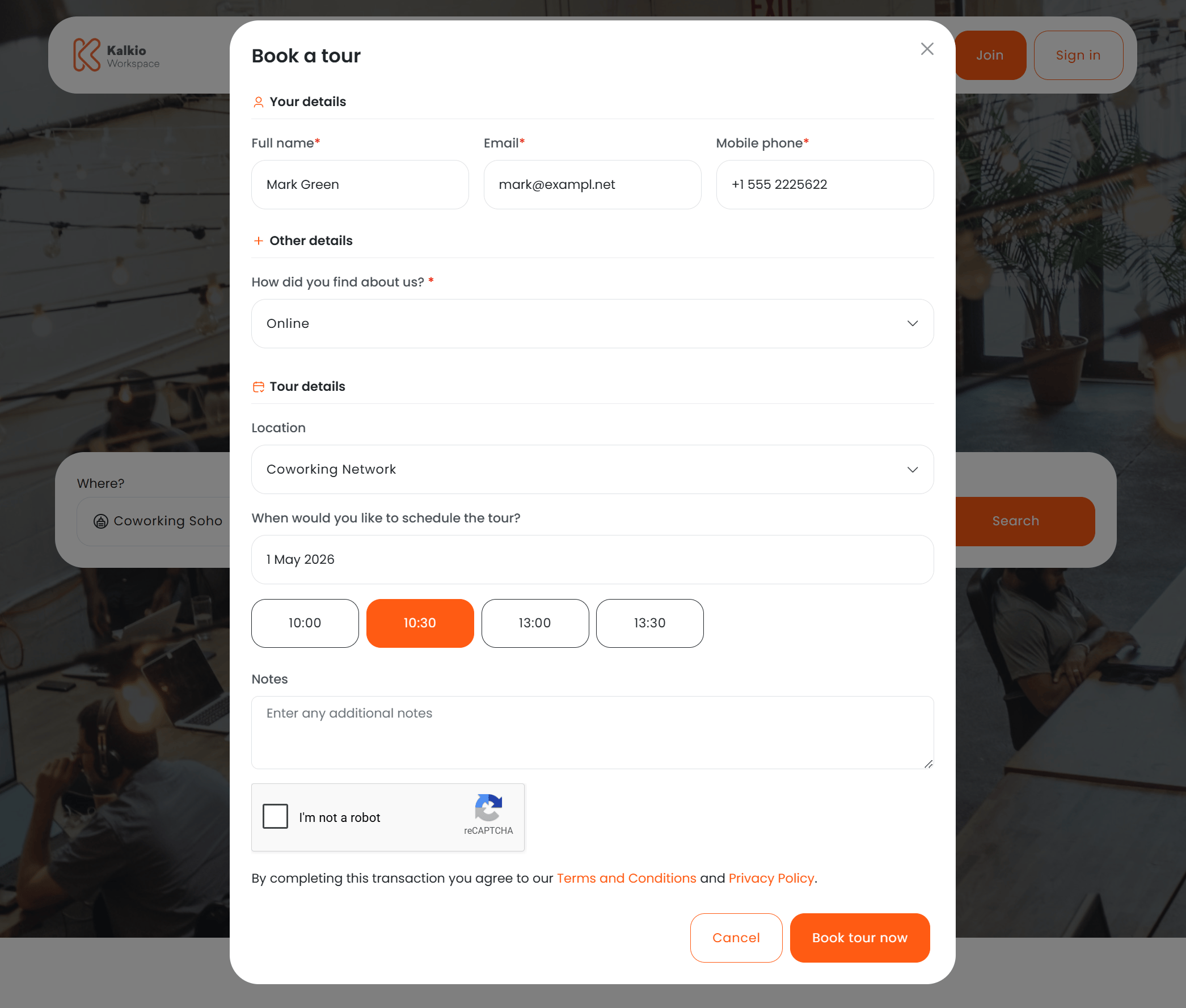
The tours feature lets prospective customers schedule a visit to your coworking space directly from the Members Portal. Visitors fill in a short form, pick an available date and time, and receive a confirmation email once the request is processed.
How tours appear in the portal
Tours are available in two places:
| Entry point | Where it appears |
|---|
| Navigation bar | A “Book a tour” link in the portal header — visible to unauthenticated visitors when tours are enabled |
| Enquiry checkout flow | When the enquiry tour option is active, the tour form is embedded as a step in the plan enquiry checkout |
The “Book a tour” link only appears when tours are enabled and the location has billing configured. It is hidden from signed-in members.
Fields
| Field | Required | Description |
|---|
| Full name | Yes | Visitor’s name |
| Email | Yes | Used for the confirmation email |
| Mobile phone | Yes | Contact number |
| Location | Yes | Dropdown listing locations that have tours enabled — defaults to the current location |
| Tour date | Yes | Date picker — only future dates are selectable, and days without available time slots are disabled |
| Time slot | Yes | After picking a date, available half-hour slots are shown as buttons based on the configured hours |
| Notes | No | Free-text area for any additional information |
Unlike other checkout forms, the tour form only supports custom fields. Standard sign-up fields (billing details, profile, contact information, etc.) cannot be added because the visitor is not creating an account.
| Status | Behaviour |
|---|
| Optional | Shown on the form but not required |
| Required | Must be filled in before the tour can be submitted |
| Hidden | Not shown on the tour form |
Date and time selection
When a visitor picks a date, the form displays the available time slots for that day as selectable buttons in 30-minute intervals. Only days that have at least one configured time slot are selectable in the calendar.
If no time slots are available for the selected date, an informational message is shown instead of the time buttons.
Validation
- The tour date must be at least one day in the future.
- The selected time must fall within a configured time slot for that day of the week.
- All required fields must be completed before submission.
reCAPTCHA and terms
The form includes Google reCAPTCHA to prevent spam submissions. Visitors must also accept your terms and conditions before booking.
Calendly integration
If you prefer to use Calendly for tour scheduling, you can enable the Calendly integration instead of the built-in time-slot picker. When active, the tour form displays an embedded Calendly widget where visitors select their preferred time directly within Calendly’s interface.
With Calendly enabled:
- The location dropdown and Calendly embed are shown instead of the date/time picker and contact fields.
- Visitor details and scheduling are handled entirely through Calendly.
Confirmation
After a successful booking, the visitor sees a confirmation message and receives an email with the tour details. If you have configured a tour host, that person is also notified.
Admin configuration
Tour settings are managed from the Nexudus dashboard under Settings > Modules > Tours.
Enabling tours
| Setting | Description |
|---|
| Enable tour form | Turns the tour request form on or off for the Members Portal |
| Tours require confirmation | When enabled, tour requests must be manually confirmed by an admin before they are finalised |
Tour time slots
| Setting | Description |
|---|
| Enable custom time slots | Restricts tours to specific hours and days. When disabled, the location’s regular opening hours are used |
| Time slot schedule | A weekly planner where you define available days and time ranges for tours |
Tour host
You can assign a user as the tour host. This person receives notifications when a tour is requested or when the visitor checks in. The assigned user should have a customer account linked to their profile.
Enquiry tour
| Setting | Description |
|---|
| Include tour in enquiry flow | Adds a tour scheduling step to the plan enquiry checkout in the portal |
Calendly settings
These settings are found under Settings > Integrations > Calendly.
| Setting | Description |
|---|
| Enable Calendly | Activates the Calendly integration for tour scheduling |
| API token | Your Calendly personal API token |
| Tour event URL | The Calendly event link used for the tour booking embed |
iCal feed
When tours are enabled, an iCal feed URL is available in the dashboard. You can subscribe to this feed from any calendar application to keep track of upcoming tour requests.
Visitor notifications
When a tour is booked, the system can send a notification email to the assigned tour host using the Visitor Notification template. This template is editable from the Email Template Editor in the dashboard.
The default template informs the host that a visitor is expected and includes the location name.
Assign a dedicated tour host so that someone on your team is always notified when a new tour is requested. This ensures prospective customers get a timely response.