

The WhatsApp channel requires a paid Twilio account. Twilio charges per message sent and received. See Twilio’s WhatsApp pricing for current rates. The cost is typically low for conversational AI use cases.
Before you start
You need:- Administrator access to your Nexudus account.
- A credit card for the Twilio account (free trial accounts are too limited for production use).
- A phone number that is not already registered with WhatsApp. This can be a new number purchased through Twilio or an existing number you own.
- Administrator access to a Meta Business Portfolio (or the ability to create one).
Make sure the AI assistant is already enabled for your space. The WhatsApp channel is an extension of the existing AI assistant — it will not work unless the base AI assistant is active.
Overview
The setup involves four main stages:
- Create a Twilio account and upgrade to a paid plan.
- Register a WhatsApp sender — connect a phone number to a WhatsApp Business Account through Twilio.
- Configure the webhook — point Twilio to Nexudus so inbound messages reach the AI assistant.
- Connect to Nexudus — enter your Twilio credentials and phone number in Nexudus settings.
Stage 1 — Create and upgrade your Twilio account
Sign up for Twilio
Go to twilio.com/try-twilio and create an account.The sign-up process asks you to:
- Verify your email address.
- Verify your personal phone number.
- Answer a few questions about your project (select Messaging as your use case).
Upgrade to a paid account
A free trial account can only message pre-verified numbers and has a single phone number limit — this is not suitable for a production AI assistant.To upgrade, in the Twilio Console, click Upgrade at the top of the page, or go to Admin > Account billing and click Upgrade account.You will need to:
- Add a payment method (credit card).
- Load a starting balance (the minimum depends on your region).
Stage 2 — Register a WhatsApp sender
A WhatsApp sender is a phone number connected to a WhatsApp Business Account (WABA) through Twilio. This is the number your members will message on WhatsApp.Choose a phone number
You have two options:| Option | Best for | Details |
|---|---|---|
| Buy a number through Twilio | Most operators | Twilio provides the number. No need to port an existing number. Go to Phone Numbers > Manage > Buy a number in the Twilio Console. |
| Use your own number | Operators with an existing business number | You can register a number you already own, as long as it is not already registered with WhatsApp. The number must be able to receive an SMS or voice call for verification. |
If the phone number you want to use is currently registered with the regular WhatsApp or WhatsApp Business app, you must delete that WhatsApp account first. A number can only be registered with one WhatsApp platform at a time.
Register the sender via self sign-up
Open WhatsApp senders
In the Twilio Console, go to Messaging > Senders > WhatsApp Senders, or navigate directly to console.twilio.com/us1/develop/sms/senders/whatsapp-senders.Click Create new sender.
Select your phone number
Under Select a phone number to register, choose a Twilio phone number or enter your own non-Twilio number.Click Continue.
Link to your WhatsApp Business Account
Click Continue with Facebook. A pop-up window opens for Meta’s self sign-up flow.
Log in to Facebook
In the pop-up, log in to your Facebook account (or click Continue as [your name] if already logged in).Review and accept the permissions that allow Twilio to manage your WhatsApp Business Account.Click Get started.
Select or create a Meta Business Portfolio
If your company already has a Meta Business Portfolio, select it from the dropdown. If not, create a new one.Click Next.
Create or select a WhatsApp Business Account
- If this is your first WhatsApp sender on Twilio, create a new WABA (WhatsApp Business Account).
- If you are adding another sender to an existing Twilio account, select the same WABA you used previously. Twilio requires all senders in one account to use the same WABA.
Set up your WhatsApp Business profile
Fill in the following:
Click Next.
| Field | Required | Description |
|---|---|---|
| Display name | Yes | The name members see when they receive messages. Must comply with Meta’s display name guidelines. Use your space’s name (e.g. “The Hub Coworking”). |
| Category | Yes | Your business category (e.g. “Office Space”, “Business Service”). |
| Description | Recommended | A short description of your space shown in your WhatsApp profile. |
| Website | Recommended | Your space’s website URL. |
Verify the phone number
Meta needs to verify that you own the phone number. The process depends on the number type:For a Twilio phone number (SMS-capable):
- Copy the phone number from the Twilio Console window.
- In the Meta pop-up, select Add a new phone number and paste it.
- Select Text message as the verification method and click Next.
- The verification code appears in the Twilio Console — copy it.
- Paste the code in the Meta pop-up and click Next.
- Enter the phone number in the Meta pop-up.
- Choose Text message or Phone call as the verification method.
- Receive the code on your device and enter it in the pop-up.
Complete Meta business verification
If you created a new Meta Business Portfolio during the sign-up, or if your existing portfolio has not been verified, you must complete Meta business verification before you can use the WhatsApp channel in production.
- Remove the 250-message daily limit on business-initiated messages.
- Add more than two WhatsApp senders.
- Request an Official Business Account (green checkmark).
- Go to Meta’s Security Centre.
- Follow the steps in How to verify your business on Meta.
Stage 3 — Configure the webhook
The webhook tells Twilio where to send inbound WhatsApp messages. You need to point it at the Nexudus API so that incoming messages reach the AI assistant.Open your WhatsApp sender settings
In the Twilio Console, go to Messaging > Senders > WhatsApp Senders. Click Edit Sender on the sender you just registered.
Set the inbound message webhook URL
In the Sender configuration section, find the A message comes in field. Enter the Nexudus WhatsApp webhook URL:Set the HTTP method to POST.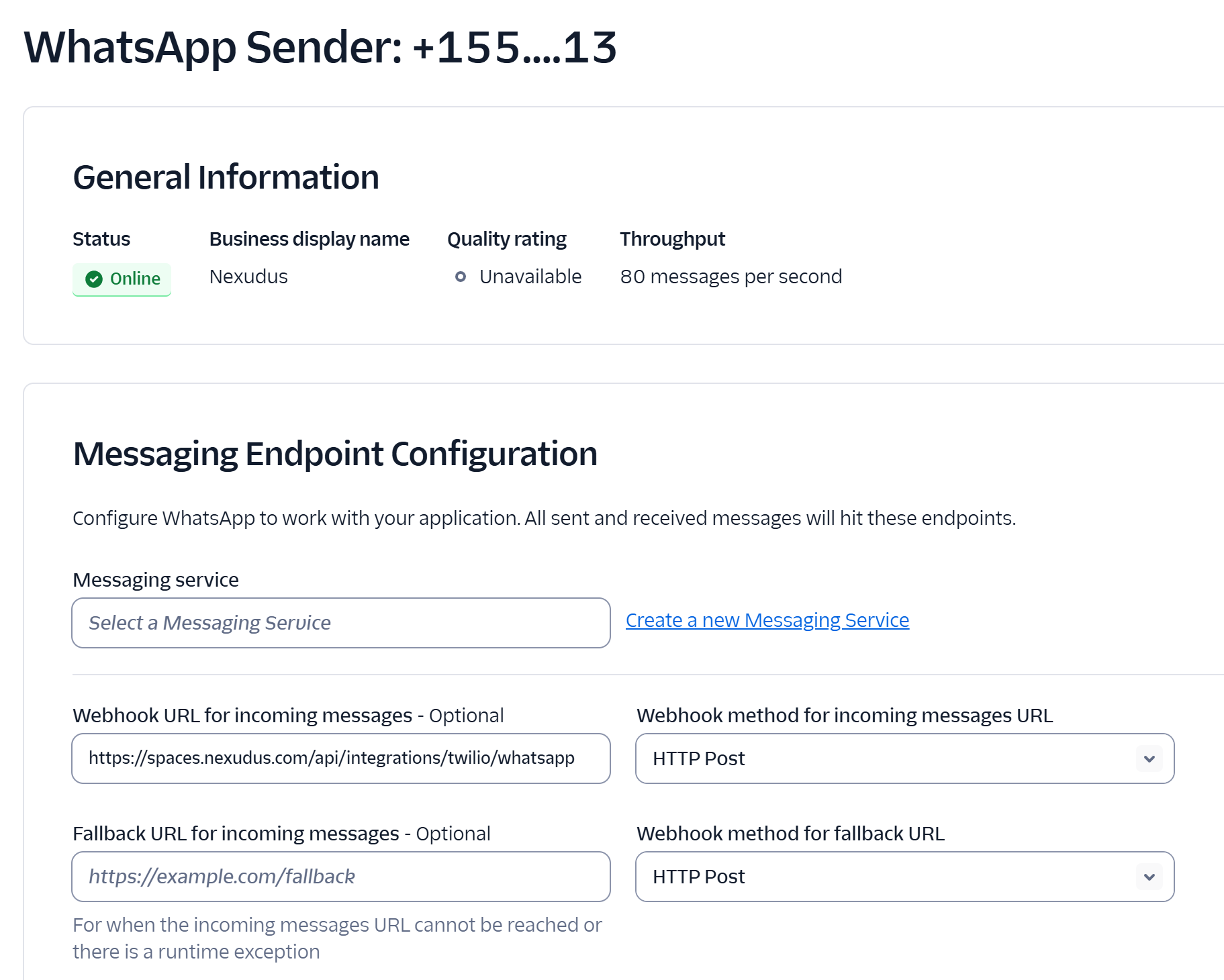
Stage 4 — Connect to Nexudus
Now connect your Twilio account and WhatsApp number to Nexudus.Open your AI settings
In the Nexudus administration panel, go to Settings and find the AI assistant section.
Enter your Twilio credentials
Enter the following values from your Twilio Console:
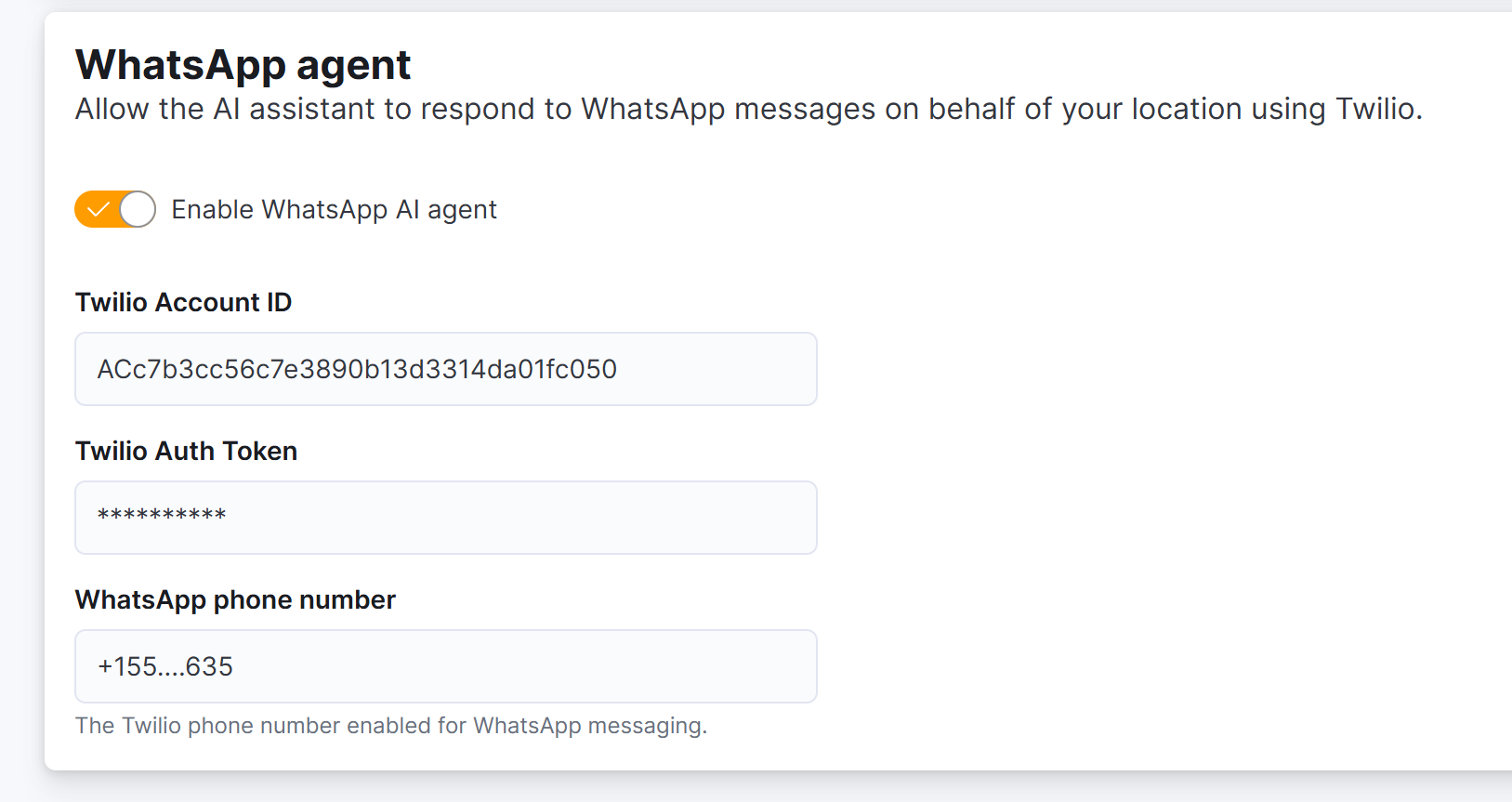
| Field | Where to find it |
|---|---|
| Twilio Account SID | Twilio Console > Account > API keys & tokens |
| Twilio Auth Token | Twilio Console > Account > API keys & tokens |
Enter your WhatsApp phone number
Enter the phone number you registered as a WhatsApp sender, in international format with the country code (for example,
+14155238886 or +442071234567).Step 5 — Test the WhatsApp channel
Send a test message
From your personal WhatsApp, send a message to the phone number you just configured. Try a simple question like:
What meeting rooms do you have?
Wait for the AI reply
Within a minute, you should receive a reply from the AI assistant in your WhatsApp conversation.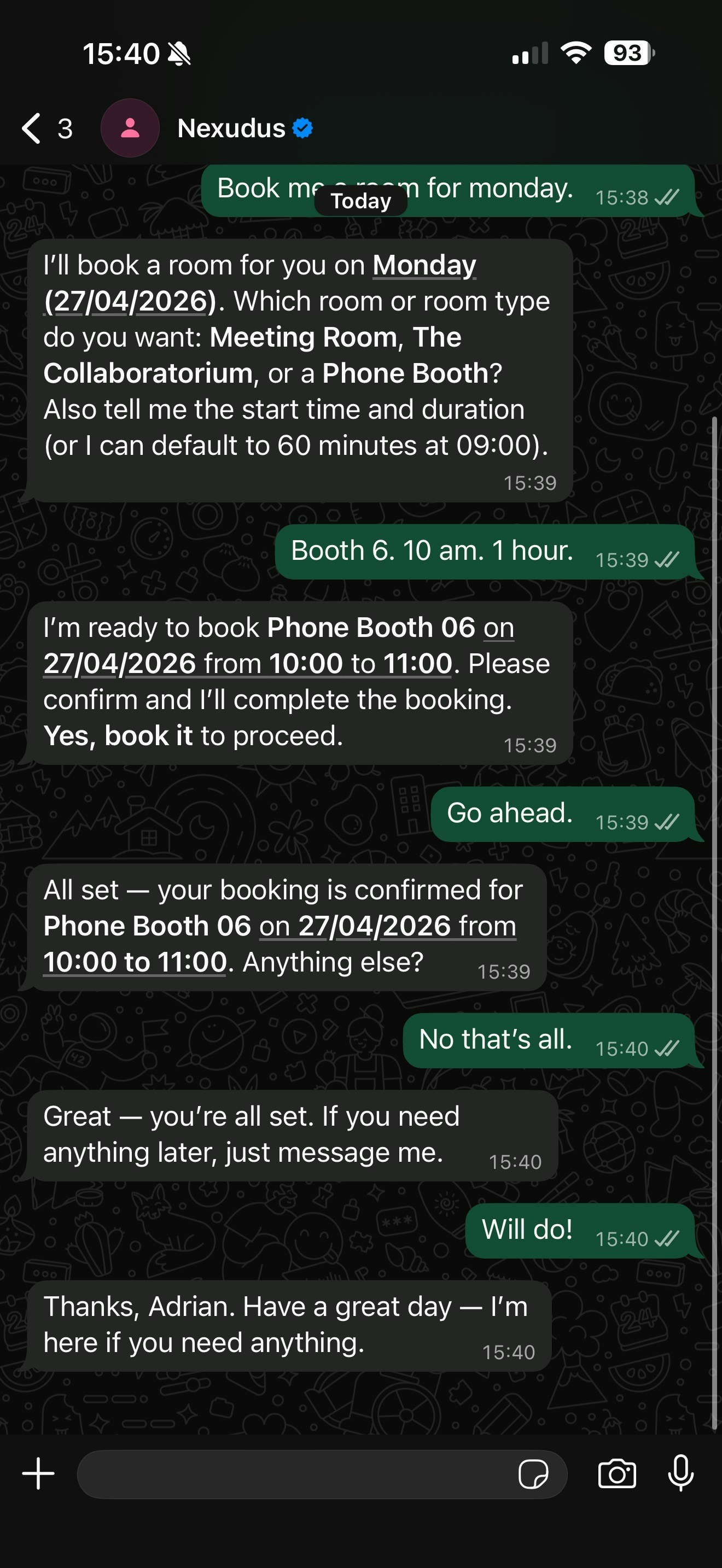
Share the WhatsApp number with your members
Once the channel is working, let your members know how to reach the AI assistant on WhatsApp:- Add a WhatsApp link to your website. Use the format
https://wa.me/{number}(without the+). For example:https://wa.me/14155238886. This opens a WhatsApp conversation directly when tapped on a mobile device. - Display the number on signage in your space, alongside a QR code that links to the WhatsApp conversation.
- Include it in your welcome email and member handbook.
- Add a “Message us on WhatsApp” button to your website. See WhatsApp’s brand guidelines for official button assets.
Multiple locations
If you operate multiple locations and want each to have its own WhatsApp number:- Each location needs its own phone number registered as a WhatsApp sender in Twilio. All senders must be under the same WhatsApp Business Account (WABA).
- In each location’s Nexudus settings, enter that location’s specific WhatsApp number.
- Set the same webhook URL for all senders — Nexudus routes messages to the correct location based on which phone number received the message.
Costs
The WhatsApp channel incurs charges from Twilio based on WhatsApp’s conversation-based pricing model:| Cost type | Description |
|---|---|
| Phone number | Monthly fee for the Twilio phone number (varies by country, typically $1–2/month) |
| Conversation charges | WhatsApp charges per 24-hour conversation window, not per message. Rates vary by country and conversation type (user-initiated vs business-initiated). See Twilio’s WhatsApp pricing. |
Troubleshooting
Messages are not being delivered to Nexudus
Messages are not being delivered to Nexudus
- Verify the webhook URL in your Twilio sender settings matches
https://spaces.nexudus.com/api/integrations/twilio/whatsappexactly. - Check the Twilio Error Logs for webhook delivery failures.
- Make sure your Twilio account is active and has a positive balance.
The AI replies on chat but not on WhatsApp
The AI replies on chat but not on WhatsApp
- Confirm that AI WhatsApp is enabled in your Nexudus business settings.
- Confirm that the phone number in Nexudus matches the sender’s number in Twilio (including the country code and
+prefix). - Check that the Twilio Auth Token in Nexudus is correct and has not been rotated since setup.
Meta rejected my display name
Meta rejected my display name
Meta reviews the display name you set during registration. If rejected, your sender is limited to 250 business-initiated messages per day. Update your display name to comply with Meta’s guidelines — it must clearly represent your business and not be generic or misleading.
I want to use a phone number that is already on WhatsApp
I want to use a phone number that is already on WhatsApp
A phone number can only be registered with one WhatsApp platform at a time. If the number is registered with the personal WhatsApp or WhatsApp Business app, you must delete the WhatsApp account from that number first. If it is registered with another WhatsApp Business Platform provider, you need to migrate it — see Twilio’s migration guide.
What happens if someone sends an image or voice message?
What happens if someone sends an image or voice message?
The AI processes text messages only. If a member sends an image, video, document, or voice message, the AI acknowledges the attachment but informs the sender that only text messages are supported at this time.
Can I disable the WhatsApp channel later?
Can I disable the WhatsApp channel later?
Yes. Switch off AI WhatsApp in your Nexudus business settings. You may also want to remove or reconfigure the webhook in Twilio to stop messages from being forwarded.
Quick reference
| Item | Value |
|---|---|
| Twilio sign-up | twilio.com/try-twilio |
| WhatsApp senders page | console.twilio.com/us1/develop/sms/senders/whatsapp-senders |
| Nexudus webhook URL | https://spaces.nexudus.com/api/integrations/twilio/whatsapp |
| Meta business verification | business.facebook.com/settings/security |
| Meta display name guidelines | facebook.com/business/help/757569725593362 |
| Twilio WhatsApp pricing | twilio.com/en-us/whatsapp/pricing |
| WhatsApp link format | https://wa.me/{number without +} |